What to Do If the SecretFolder "Failed to ConnectToFilterDriver" Error Occurs
The SecretFolder program is not installing properly at the moment, so you will need to remove it manually in order to delete it completely. The steps are explained in detail below.
First, press the Windows key and the R key on your keyboard at the same time. A small input window called "Run" will then appear on the screen. Type "regedit" exactly into that window and press Enter to open the Registry Editor. The Registry Editor is a tool that can modify system settings, so please proceed carefully.
Once the Registry Editor is open, go to the following path in the tree on the left:
HKEY_LOCAL_MACHINE\SOFTWARE\Wow6432Node\Microsoft\Windows\CurrentVersion\Uninstall\SecretFolder_is1
Find the "SecretFolder_is1" key at this location, right-click it, and select "Delete" to remove the key completely. This path is mainly used on 64-bit systems.
If you cannot find the "SecretFolder_is1" key in the path above, your system may be 32-bit, so please check the following path:
HKEY_LOCAL_MACHINE\SOFTWARE\Microsoft\Windows\CurrentVersion\Uninstall\SecretFolder_is1
At this location as well, find the "SecretFolder_is1" key, right-click it, and select "Delete" to remove it. This will clean up the registry entries related to SecretFolder.
Once the registry work is complete, you will need to delete the folder related to SecretFolder from the file system. First, open File Explorer and go to the following path:
%programfiles(x86)%\SecretFolder
This is usually the default installation path on a 64-bit system. %programfiles(x86)% typically refers to C:\Program Files (x86), and there should be a folder named "SecretFolder" there. Find that folder, right-click it, and select "Delete" to remove the folder and all files inside it completely.
If you cannot find the "SecretFolder" folder in the path above, your system may be 32-bit, so please check the following path:
%programfiles%\SecretFolder
This path, %programfiles%, usually refers to C:\Program Files. Here as well, find the "SecretFolder" folder, right-click it, and select "Delete" to remove the folder and all of its contents.
Once you complete all of the steps, the registry entries and files related to the SecretFolder program will be completely removed from your system. If you run into any issues during the process or have trouble finding the path, check whether you entered the path correctly or whether you are running with administrator privileges. By following this process, you can manually remove SecretFolder cleanly.
Today's News/Tips
The "Failed to initialize sound library." Error Appears When Recording Starts
When recording with oCam, sound-related errors may occur. To prevent this, it is important to first check whether sound playback is working properly on your PC. If you try to record on a PC where sound playback is not available, an error is likely to occur. Below is a detailed explanation of how to record with oCam in an environment where sound playback is unavailable and how to configure the settings to avoid errors.
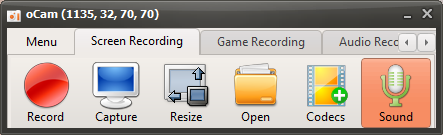
If sound is not playing properly on your PC, you can solve the problem by disabling oCam's system audio recording feature. Please follow the steps below:
1. Launch the oCam main window.
2. In the main window, click the 'Sound' button.
3. When you click it, a pop-up menu will appear, and in most cases the 'Record System Audio' option will be checked by default.
4. Click the 'Record System Audio' item to uncheck it.
With this setting, oCam will not try to record system audio, so you can continue recording without errors even on a PC where sound playback is not available. This setting is especially useful in environments where system audio is not output due to sound driver problems or hardware issues.
Before recording, always check the sound playback status of your PC and apply the setting above if necessary to create a stable recording environment. If you want to resolve the sound playback issue more fundamentally, updating the sound driver or checking the device's sound settings is also a good approach.