Overview of SecretFolder's Key Features
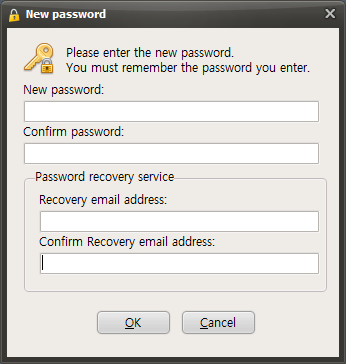
When you launch SecretFolder for the first time, a password setup window like the one below will appear, and you must enter a password before you can use the program.
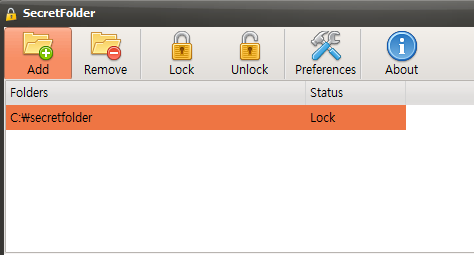
After setting a password and launching SecretFolder, you will see buttons like the ones below.

Add - Adds the folder you want to hide.
Remove - Removes a previously added folder. ( The folder itself is not deleted; it is only removed from the list. )
Lock - Hides the folder added through the Add button.
Unlock - Makes a folder hidden through the Add or Lock button visible again.
Preferences - Opens the window where you can configure the main settings.
About - Opens the program information window.
Now let's look at how to hide a folder and restore it again.
First, to hide a folder, click the "Add" button.
When the Browse for Folder window appears, "select the folder you want to hide" and click the "OK" button.
You will then see that it has been added to the list as shown below, and the folder will be changed to a hidden state.
To remove a folder from the list, click the "Remove" button.
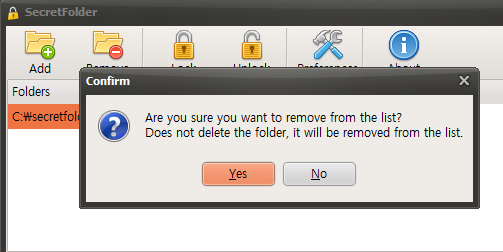
Clicking the "Yes" button will remove it from the list, but the actual folder will not be deleted.
Today's News/Tips
How to Change the File Name of Saved Recordings, Audio Recordings, or Captures
Click Tools - Options in the top menu of oCam.
Then click the Save tab on the left to set the file name for saved files.
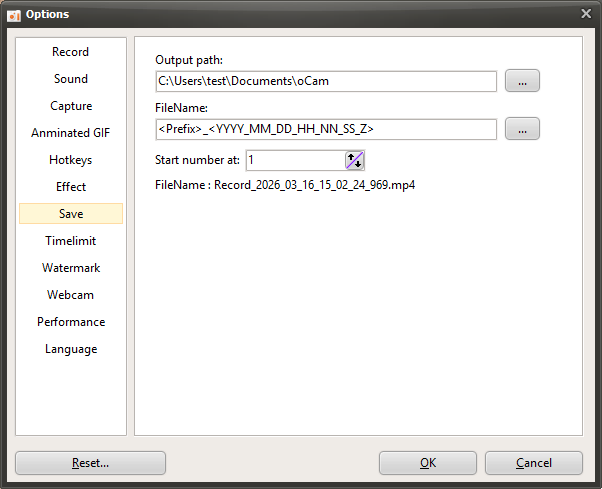
By default, files are saved in the following format.
<Prefix>_<YYYY_MM_DD_HH_NN_SS_Z>
The text inside the <> brackets uses special keywords. These keywords can represent the prefix, date, serial number, program name, user ID, and user name.
With the default settings, when recording starts and then finishes, the file is saved in the format Recording_2015_05_07_14_22_41_791. If you only want to change the word Recording at the beginning, you can change it as follows.
Test_<YYYY_MM_DD_HH_NN_SS_Z>
If you do this, the file will be saved in the format Test_2015_05_07_14_22_41_791 after recording is completed.
If you want to add a serial number after Test instead of the date,
set it to Test_<#>, and it will be saved as Test_1... Test_2 ... Test_3...................... Test_10.
Description of the special keywords used inside the <> brackets
If the current date is
2015_05_07_14_22_41_791
in this format,
<Y> = 15 ( two-digit year )
<YY> = 15 ( two-digit year )
<YYYY> = 2015 ( four-digit year )
<M> = 5 ( one-digit month )
<MM> = 05 ( two-digit month )
<MMM> = 5 ( not used in the Korean locale )
<MMMM> = May ( month name displayed according to the system locale )
<D> = 7 ( one-digit day )
<DD> = 07 ( two-digit day )
<DDD> = Thu ( day of the week )
<DDDD> = Thursday ( displayed according to the locale language )
<DDDDD> = 2015-05-07 ( date )
<DDDDDD> = Thursday, May 7, 2015 ( date and day of the week, displayed according to the locale language )
<C> = 2015-05-07 2:22:41 PM ( date and time )
<H> = 14 ( one-digit hour )
<HH> = 14 ( two-digit hour )
<N = 22 ( one-digit minute )
<NN> = 22 ( two-digit minute )
<S> = 41 ( one-digit second )
<SS> = 41 ( two-digit second )
<Z> = 791 ( milliseconds )
<ZZZ> = 791 ( milliseconds )
<T> = 2:22 PM ( AM/PM label varies by locale, followed by the time )
<TT> = 2:22:41 PM ( AM/PM label varies by locale, followed by the time and seconds )
<AM/PM> = AM or PM
<a/p> = a or p
<ampm> = AM or PM
<Prefix> = Recording for video recording, Screen Capture for captures, Audio for audio recording
<ProgramName> = For normal recording, oCam; for game recording, the executable file name of the game program
<UserID> = Windows user ID
<DisplayUserName> = Windows display name
<#> = one-digit serial number
<##> = two-digit serial number
<###> = three-digit serial number