oCam Advanced Settings - Hotkeys
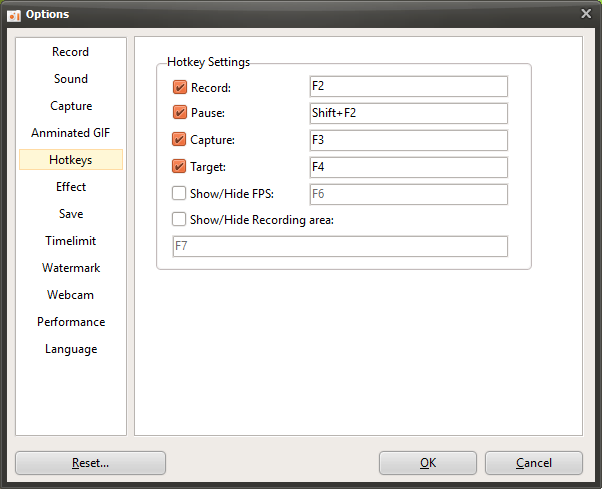
oCam is software that provides various hotkeys for user convenience, helping users perform screen recording and capture tasks quickly and efficiently. In the settings window that appears when you click the "Tools - Options" menu, the "Hotkeys" category on the left provides options for setting or disabling hotkeys that let you quickly run oCam's main features. These settings are useful for everyone from beginners to IT professionals who want to streamline their workflow. Below is a detailed explanation of the main settings in the "Hotkeys" category.
Overview of Hotkey Settings
The "Hotkeys" category is focused on letting you run oCam's main functions, such as Start/Stop Recording, Pause, Screen Capture, and Find Target Window, using keyboard shortcuts. Default hotkeys are already assigned for each function, but users can freely change or disable them to match their working environment or personal preference. Using hotkeys greatly improves productivity by allowing you to work quickly without using the mouse.
Recording Hotkey
The "Recording Hotkey" option lets you set the shortcut used to start or stop screen recording. The default hotkey is set to F2. Pressing this hotkey immediately starts recording or stops a recording already in progress. Users can change this setting to a more convenient key or key combination, such as Ctrl+R or Alt+F2. This feature is especially useful in situations that require quick control, such as recording gameplay or live lectures.
Pause Hotkey
The "Pause Hotkey" option lets you set the shortcut used to temporarily pause recording. The default hotkey is set to Shift+F2. This feature is useful when you want to skip certain sections or pause briefly during a recording. For example, you can use this hotkey to leave out unnecessary waiting time during a lecture or to pause recording briefly while editing a certain part of gameplay. Users can change it to a different key combination if needed.
Capture Hotkey
The "Capture Hotkey" option lets you set the shortcut used to capture the screen. The default hotkey is set to F3, and pressing this key saves the selected screen area as an image. This feature is very convenient when you want to quickly capture a moment on the screen for software guides, tutorial materials, or documentation. Users can change the hotkey to suit their work environment, for example to avoid key conflicts with another capture program they use frequently.
Find Target Window
The "Find Target Window" hotkey is the shortcut used to run the "Find Recording Target Window" feature provided when you click the "Resize" button in the oCam main window. The default hotkey is set to F4. This feature is used to automatically detect a specific window or application and set it as the recording area. For example, if you want to record only a specific program window, pressing this hotkey allows oCam to quickly recognize that window and set the recording area. You can change this hotkey to a key that better fits your workflow.
How to Change or Disable Hotkeys
Changing a Hotkey: To change a hotkey, click the input field for the function you want, then enter the new key or key combination, such as Ctrl+Alt+R. After that, click the "OK" button at the bottom right of the settings window to apply the change. Be careful not to assign duplicate hotkeys, and it is best to choose keys that do not conflict with other programs.
Disabling a Hotkey: If you do not want to use a hotkey, simply uncheck the checkbox next to that function. This disables the hotkey for that feature, and the key input will be ignored. This is useful for users who prefer to control oCam only with the mouse instead of using hotkeys.
Usage Tips
The settings in the "Hotkeys" category can greatly improve work efficiency. For example, if you want to start or stop recording quickly during a game stream, it is a good idea to set the "Recording Hotkey" to a key you use often so you can control it instantly. The "Pause Hotkey" is useful for removing unnecessary parts during long recording sessions, and the "Find Target Window" hotkey is efficient when you need to quickly select a specific application while multiple windows are open. When changing hotkeys, it is important to test them in advance to make sure they do not conflict with keys used by other software.
Also, if you use hotkeys often, it can help to write down the hotkeys for each function or keep the oCam settings window easy to open so you can check them quickly. If you often forget hotkeys, you can use the buttons in the oCam main window instead or adjust the settings to minimize hotkey use.
Today's News/Tips
How to Resize the Recording Area in oCam
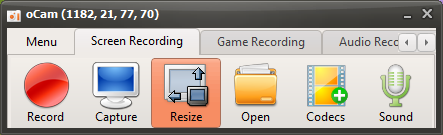
The main screen of oCam includes various buttons designed for intuitive use of its features, and among them, the "Resize" button is one of the key functions for customizing the recording area. When you click this button, a clean and user-friendly pop-up menu appears. This menu provides a variety of options for flexibly adjusting the size and resolution of the recording area, making it easy for everyone from beginners to IT professionals to configure settings that best fit their working environment.
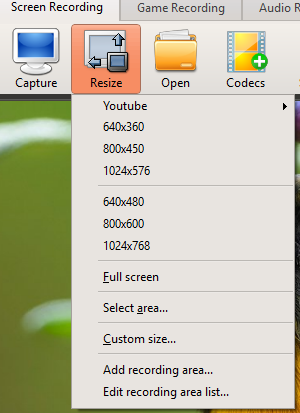
When the pop-up menu opens, the sizes shown represent the resolution of the recording area, and clicking a menu item immediately adjusts the recording area to the selected resolution. For example, if you choose a standard resolution such as 1920x1080 (Full HD) or 1280x720 (HD) under the YouTube category, the oCam recording frame will be set to that size and recording will proceed at the exact resolution. oCam supports resolutions up to 4K (3840x2160) by default, making high-resolution content creation possible. In particular, when using the MPEG-4 codec, it supports resolutions up to 8K (7680x4320). This is especially useful for professionals who need high-quality video production, such as recording high-resolution gameplay footage or performing professional video editing work.
The pop-up menu also includes a "Full Screen" menu item. Clicking this option automatically sets the recording area to cover the entire monitor screen. If you press the Record button in this state, the whole screen will be recorded, which is especially useful when capturing the entire desktop, presentations, or full-screen gameplay. Full Screen mode is the best choice when you want to record all on-screen content easily without setting a separate area.
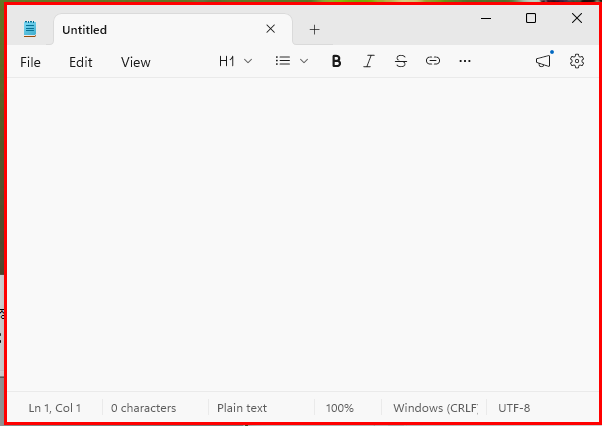
Another powerful feature is the "Find Recording Target Window" menu item. When you click this option, the window under the mouse pointer is highlighted with a red rectangular box. If you move the mouse over the window you want and click it, that window area is automatically set as the recording area. This feature is very useful when you want to record or capture only a specific window, such as an application or browser window. For example, when creating software tutorials or recording the workflow of a specific program, you can capture only the necessary window cleanly without unnecessary background, greatly improving work efficiency.
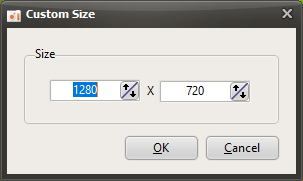
Finally, the "Custom Size" menu item is an option that allows users to control the size of the recording area more precisely. Clicking this menu opens a separate input window, where users can directly enter the horizontal and vertical pixel values of the desired resolution to set the recording area. This feature is especially useful when a non-standard resolution or a custom size is needed for a specific project. For example, it can be used when you need to match the resolution requirements of a video for upload to a social media platform or record at a size optimized for a specific device.
With these various options, oCam's resize feature makes it possible to set the recording area flexibly and precisely according to the user's needs. The ability to set the desired resolution and area with just a few clicks clearly shows oCam's intuitive design and efficiency. In addition, you can further optimize your workflow by adjusting the save path, file naming rules, or detailed codec settings in the Settings menu. If you want high-quality video or need to capture a specific window, we recommend actively using oCam's resize feature to get the results you want with ease.