Differences in the Paid Version of oCam and How to Register the Serial Number
This software is free for non-commercial personal use, so businesses and users using it for commercial purposes must purchase a license.
If you use it in a company, organization, public institution, educational institution, or PC cafe, please purchase a license before use.
There is no difference in functionality between the free and paid versions. All ads shown in the free version are removed in the paid version.
Of course, non-commercial individual users may also purchase it if they want to remove the ads.
After purchase, the serial number will be sent to you by email, and you can use the software after registering it as shown below.
[How to Apply the Serial Number]
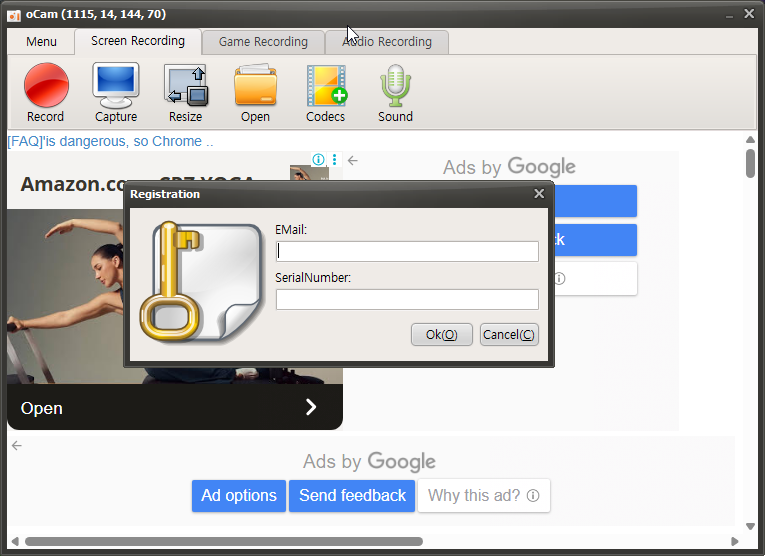
As shown above, click the menu and select Register, then enter your email address and serial number and click OK. Authentication will proceed as shown below.
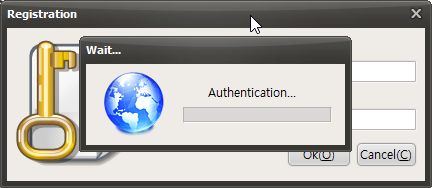
After a short wait, the registration will be completed successfully.
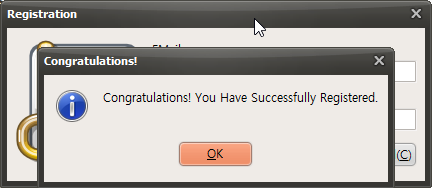
[Registered oCam Licensed Version]
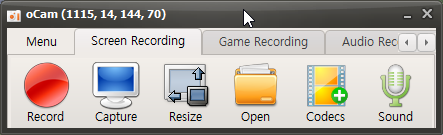
This is the registered screen with the ads removed.
For reference, the ads that opened when exiting the free version are also removed in the paid version.
Today's News/Tips
How to record microphone audio together during recording (Windows XP)
How to record microphone sound together with the recording (Windows XP)
Windows XP is an operating system whose support has ended at Microsoft, so it may not work normally. (for reference)
Click the Settings button on the oCam main screen.
The Sound and Audio Devices Properties window opens, then click the Advanced button.
The Volume Control window opens, click Options - Properties from the menu.
In the Properties window, select the Recording radio button, check the Microphone volume checkbox, and click OK.
A new window opens as shown below, and check the checkbox in the Microphone Volume tab.
After closing the window, return to Control Panel - Sound and Audio Devices and click the Advanced button again. Then click Options from the menu.
And this time, click the Playback radio button, check the Microphone volume checkbox, and click OK.
In the Microphone Volume tab, uncheck the Mute checkbox.