oCam Quick Overview of Key Features
oCam (oCam) Key Features Overview
You can see the following screen when you run the program.
Select one of the top tabs to choose the recording type first: Screen Recording, Game Recording, or Sound Recording, and then start.
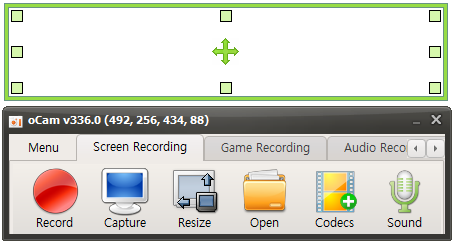
This is a brief explanation of the buttons for each function.

Record - Pressing this button starts recording immediately. The recorded video can be viewed by pressing the Open button.

Capture - Captures the screen.

Open - Opens the folder containing recorded videos, recorded audio, and captured images in Windows Explorer.

Codec - Sets the codec to use when pressing the record button in oCam.
By default, you can use oCam's built-in codec, hardware codecs such as NVIDIA NVENC, and VFW (external codec).
You can also select GIF recording.
Sound - For screen recording and sound-only recording, you can set whether to record only system sound, record both system sound and microphone, or not record sound.
Game Recording - To record a game, click the Game Recording button. When the Game Recording button is activated, activate the game window and then press the recording hotkey to start recording.
In addition, you can configure many detailed program features in Menu -> Options.
Recording Area - There is a large rectangle, several small square boxes, and a drag-shaped icon in the center.

The large rectangle is the recording or capture area.
The small squares can be dragged to adjust the size of the recording or capture area.
The drag icon in the center can move the recording or capture area.
You can also move it more precisely by using the arrow keys together with Ctrl and Shift.
Today's News/Tips
What to Do If Sound Is Muffled or Too Quiet During Recording (Windows XP)
For Windows XP, normal operation may not be guaranteed because Microsoft has ended support for this operating system. (Reference)
Double-click the Sounds and Audio Devices icon in Control Panel.
The Volume Control window will appear. Click Options, then Properties.
Select Recording, then under Show the following volume controls, check "Stereo Mix" and click OK.
If the sound is muffled, lower the Stereo Mix volume. If the sound is too quiet, increase the Stereo Mix volume.
Since Stereo Mix is a feature provided by the sound driver, on some sound drivers the sound may still be quiet even if the Stereo Mix volume is increased. In that case, you should also increase the system volume.