What Video Codecs and Container Formats Are Supported?
oCam supports a range of video codecs and container formats so that users can choose from various recording options.
Below is information about the video codecs supported by oCam.
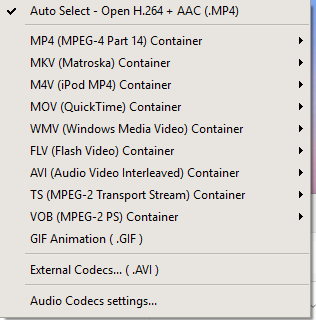
* How to Check Supported Video Codecs
You can check the video codecs supported by oCam simply by clicking the 'Codec' button in the oCam main window. From this menu, you can easily view and adjust the list of available codecs and their settings.
* Supported Video Codecs
oCam supports the following video codecs for different container formats. Each codec is encoded according to the selected container format:
- MPEG-1: Used with the AVI container format and widely compatible as an early digital video compression standard.
- MPEG-2: Used with the TS and VOB container formats and suitable for DVDs and broadcast streaming.
- MPEG-4: Used with a wide range of container formats, including MP4, MKV, M4V, MOV, FLV, and WMV. oCam uses MPEG-4 as its default codec, offering high compression and good quality.
- XVID: Used with the AVI container format. It is an open-source codec based on MPEG-4, and oCam internally uses the MPEG-4 codec with only the FourCC set to XVID.
- OpenDivx: Used with the AVI container format, also based on MPEG-4, with the FourCC set to OpenDivx.
- Microsoft MPEG-4 Part 2: Used with the AVI container format and set as oCam's default codec. It can be played in most video players, such as Windows Media Player, without installing additional codecs.
- Microsoft MPEG-4 Part 3: An additional option available for the AVI container format, offering compatibility and quality.
* Relationship Between Container Formats and Codecs
oCam supports various container formats, and according to the image you provided, the supported container formats are as follows:
- MP4 (MPEG-4 Part 14): Uses the MPEG-4 codec.
- MKV (Matroska): Uses the MPEG-4 codec.
- M4V (iPod MPEG-4): Uses the MPEG-4 codec.
- MOV (QuickTime): Uses the MPEG-4 codec.
- WMV (Windows Media Video): Uses the MPEG-4 codec.
- FLV (Flash Video): Uses the MPEG-4 codec.
- AVI (Audio Video Interleave): Uses MPEG-1, MPEG-2, MPEG-4, XVID, OpenDivx, Microsoft MPEG-4 Part 2, and Part 3.
- TS (MPEG-2 Transport Stream): Uses the MPEG-2 codec.
- VOB (MPEG-2 PS): Uses the MPEG-2 codec.
- GIF (Graphics Interchange Format): Can be saved as an animated GIF when recording video.
- Audio Recording: Saved in AAC (MP4) format.
By default, oCam records in the AVI container using the Microsoft MPEG-4 Part 2 codec, and this setting is suitable for beginners because it can be played immediately in Windows Media Player and other players without installing additional codecs. MPEG-4, XVID, and OpenDivx are all internally based on the MPEG-4 codec, with only different FourCC codes used to extend compatibility.
* Audio Codec
The audio data saved during recording is encoded in MP3 format, and in some cases, such as with the MP4 container, AAC format is also supported.
* Additional Information
If you install external codecs, you can use more codec options, which will be covered in detail in a separate post. You can adjust oCam's codec settings to match your desired quality and file size, so check the options through the 'Codec' button and test them as needed.
Today's News/Tips
How to Fix Severe Lag When Recording Games in Nox App Player
If you experience severe lag when starting game recording with oCam, you can resolve the issue by changing the settings as described below. In particular, if you are using Nox App Player, follow these steps to reduce lag and achieve smoother recording.
First, launch Nox App Player. After the program starts, click the gear-shaped icon in the upper-right corner of the screen to open the Settings menu. This icon is generally used to access system settings.
When the Settings window opens, select the 'Advanced Settings' tab from the menu on the left. In the Advanced Settings screen, find the 'Graphics Mode' option and change it to 'Speed Mode (DirectX)'. This setting optimizes performance by using system resources more efficiently and is especially effective for reducing lag during game recording. After making the change, click the 'Save Settings' button to apply it.
After saving the settings, you must completely close and restart Nox App Player. Once it restarts, the changed graphics mode will be applied, which can reduce lag and provide smoother performance when recording games with oCam.
This method is useful for resolving performance issues that occur when using Nox App Player together with oCam. If the problem continues after changing the settings, it is recommended to check your system specifications or review other oCam settings, such as frame rate and resolution, for additional optimization.