PC Crashing or Apps Freezing? Find the Cause with Reliability Monitor
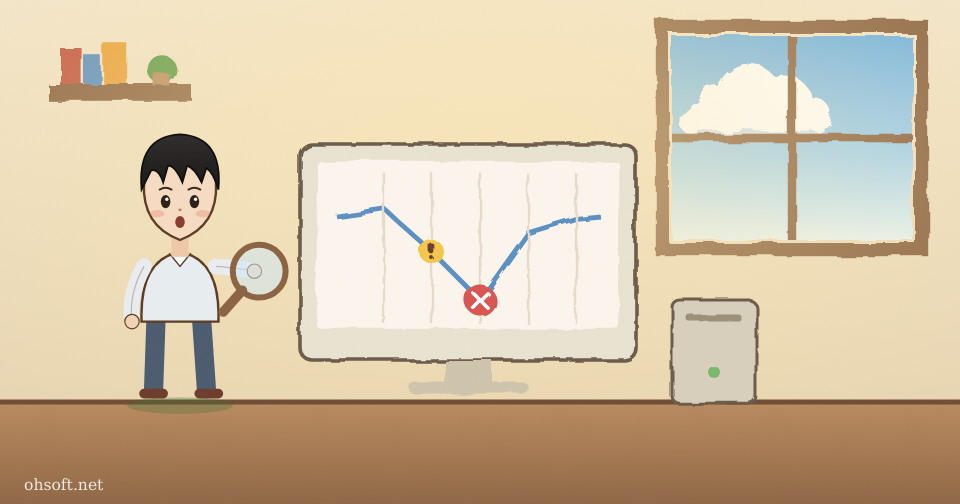
If your PC restarts without warning, shows a blue screen, or a certain app keeps closing and you don't know why, open Reliability Monitor, a tool built into Windows. It shows on a daily graph when each problem happened and which app caused it. It works the same in Windows 10 and 11.
1. How to open Reliability Monitor
- Type "View reliability history" in the Start menu search box and open it.
- Or press Win + R, type perfmon /rel and press Enter.
- You can also go to Control Panel → Security and Maintenance, expand Maintenance and click View reliability history.
2. How to read the graph
- The blue line at the top is the stability index (1 to 10). It drops on days with errors and slowly rises when nothing goes wrong.
- A red X is a critical event. "Application failures" means an app closed unexpectedly; "Windows failures" means a blue screen or an improper shutdown.
- A yellow exclamation mark is a warning (such as a failed update), and a blue i is information (an app, driver or update was installed).
- Switch View by: Days/Weeks at the top to see a longer period on one screen.
3. Finding the cause
- Click a day with a red X to see that day's records below. Double-click an entry or click View technical details.
- The "Faulting module name" (for example, nvlddmkm.sys or ntdll.dll) is the file involved. Searching for that name usually tells you whether it is a graphics driver or a specific app.
- Also look at what was installed just before the red X (blue i). If errors started the day after a new driver, update or app, that is the likely cause.
- If the same app crashes on many days, the problem is that app. If different apps crash every day or you see many "Windows failures", the cause is more likely the PC itself, such as a driver or memory.
4. What to try for each cause
- A specific app: update it to the latest version, or uninstall and reinstall it.
- A driver file (.sys): install the latest graphics or audio driver from the manufacturer's website. If it started after a new driver, use Roll Back Driver in Device Manager.
- Right after an update: you can remove the update from Settings → Windows Update → Update history.
- Different causes every time: run Windows Memory Diagnostic from the Start menu to test your RAM.
- Click View all problem reports at the bottom for the full list, or Save reliability history as an XML file to send to a repair technician or support team.
Source: Microsoft Learn – perfmon command (/rel: Reliability Monitor)
Blog
- How to Create a System Restore Point in Windows and Roll Back Your PC
- C: Drive Running Out of Space? How to Free Up Storage in Windows
- How to Pause Windows Updates and Uninstall an Update That Causes Problems
- Microphone Not Working in Windows? How to Fix It (Windows 10 and 11)
- Internet Keeps Dropping in Windows? How to Reset the Network and Change DNS
- YouTube Copyright Claim on Music? You Can Now Swap It for Free AI Background Music Outside the US
- Watch Out for Fake "Windows Security" Alerts, and Install the Urgent Chrome Update
- Tesla Robotaxi Reaches 8 Cities, Optimus May Be Rented, Agility Goes Public, Claude Fable and Mythos 5.2, Gemini for Healthcare