PC Suddenly Slow? Find What Is Using 100% Disk or CPU in Task Manager (Windows 11)
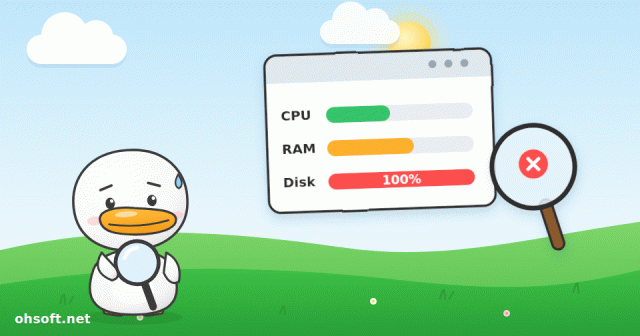
The mouse still moves, but windows open slowly, the drive light keeps blinking and the fan gets loud. Usually one program is hogging the disk or the CPU. If you know how to open Task Manager, finding the culprit takes about a minute.
Step 1: Open Task Manager and sort
- Press Ctrl + Shift + Esc to open Task Manager. If it opens small, click More details.
- On the Processes tab, click the CPU or Disk column header to sort by usage.
- The item at the top is what is slowing your PC right now. Watch for a minute or two to see if it stays there.
Step 2: Common culprits and what to do
- Antimalware Service Executable: Windows Security is scanning. It usually drops back by itself, so give it a moment. If scans keep clashing with your work, change the scheduled scan time.
- Windows Update items (Service Host, Windows Modules Installer): an update is downloading or installing. Check progress in Settings → Windows Update and restart when it is done.
- Windows Search (SearchIndexer): Windows is building its file index. This often happens right after you move lots of files and settles down over time.
- Your browser (Chrome, Edge): dozens of tabs or several video tabs use a lot of CPU. Open the browser's own task manager with Shift + Esc and close the heavy tabs.
- An unfamiliar name that keeps using lots of CPU: right-click it → Open file location to see where it lives. If you don't recognize the program, run the malware scan below.
Step 3: Dig deeper with Resource Monitor
- Press Win + R, type resmon and press Enter.
- On the Disk tab, "Disk Activity" shows exactly which files are being read and written. If one program keeps writing the same file, that's your cause.
- On Task Manager's Performance tab, if the disk's Active time sits at 100% while the speed is only a few MB/s, the drive itself may be slow or in poor health.
Still stuck at 100%?
- Restart: a PC that has been on for days often recovers with a simple restart. Choose "Restart" rather than shutting down and turning it back on.
- Trim startup apps: on Task Manager's Startup apps tab, disable programs you don't need.
- Scan for malware: run a full scan in Windows Security. Hidden crypto-mining software keeps CPU usage high all the time.
- Hard disk (HDD) PCs: Windows 11 often hits 100% disk on a hard drive. Moving to an SSD is the most reliable fix.
- Check the power mode: in Settings → System → Power, "Best power efficiency" can make a laptop run slower on purpose.
Reference: Microsoft Support – Tips to improve PC performance in Windows
Blog
- Is Your 144Hz Monitor Stuck at 60Hz? How to Set the Right Refresh Rate in Windows
- YouTube Streams Return to the Billboard Charts in 2027, and Drake Says the Game Is "Cooked"
- Tesla Robotaxi Now Runs 24/7 in Every City · Musk: Optimus Will "Probably" Be Rented, Not Sold
- Got a Blue Screen? How to Read the Stop Code and What to Try First (Windows 10 and 11)
- Can't Switch Keyboard Language in Windows? Fixes for Win + Space, the Language Bar and the Korean Han/Eng Key
- Set Up Dual Monitors Properly: Change the Main Display, Arrangement and Scaling (Windows 11)
- A Security-Testing AI Tool Turned Weapon: FBI Warns ARTEX Can Take Over Company Networks in 3 Hours
- PC Won't Wake From Sleep, or Wakes Up by Itself at Night? Fix It with powercfg