Can't Switch Keyboard Language in Windows? Fixes for Win + Space, the Language Bar and the Korean Han/Eng Key
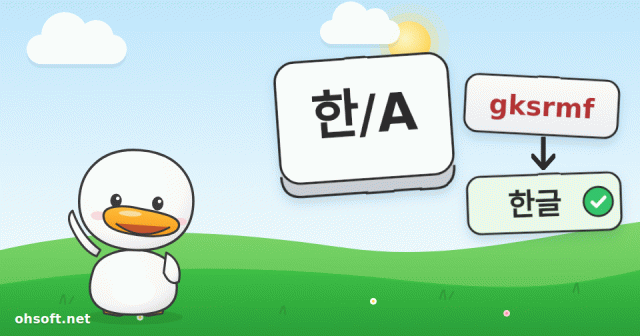
Sometimes you press the key or shortcut that switches your keyboard language and nothing happens, or you keep typing in the wrong alphabet. Usually the input program has just hung, or Windows has the wrong keyboard type set. Work through these steps in order.
Step 1: See which keyboard is selected right now
- Look at the language indicator next to the clock at the bottom right of the taskbar (for example ENG, or A / 가 for Korean).
- Press Win + Space to cycle through your installed keyboards, or click the indicator and choose the one you need. Alt + Shift also switches languages on many PCs.
- If you have keyboards you never use, remove them in Settings → Time & language → Language & region so you don't land on the wrong one by accident.
Step 2: Restart the input program
- The quickest fix is to sign out and back in, or restart the PC.
- If you can't restart, press Win + R, type
ctfmonand press Enter. This restarts the program that handles text input. - If switching fails only in one program (a game, Remote Desktop or some security software), that program may be capturing the keys. Compare with Notepad.
Step 3: Toggle "Use previous version" of the input method
- Go to Settings → Time & language → Language & region, click … next to your language → Language options → … next to the Microsoft keyboard → Keyboard options.
- For Korean, Japanese and Chinese input methods, look for Use previous version of Microsoft IME (under General or Compatibility) and turn it on, or off if it is already on. This often helps when input broke after an update.
Step 4: Make sure Windows knows your keyboard type
- If a dedicated language key (such as the Korean Han/Eng key or the Japanese Hankaku/Zenkaku key) does nothing at all, Windows may think you have a plain English keyboard.
- Right-click the Start button → Device Manager → Keyboards, right-click your keyboard → Update driver → Browse my computer for drivers → Let me pick from a list.
- Untick Show compatible hardware, choose "(Standard keyboards)" and pick the keyboard for your language (for Korean, Korean PS/2 Keyboard (103/106 Key)), then restart.
- If it still fails, try a different USB port or another keyboard to rule out a hardware fault.
Laptops and keyboards without a language key
- On Korean layouts, the right Alt key usually works as the Han/Eng key.
- You can always switch with Win + Space or by clicking the language indicator on the taskbar.
Reference: Microsoft Support – Manage the input and display language settings in Windows
Blog
- Atlas Tested on Wheels, JPMorgan Sees Up to 400,000 US Humanoids by 2030, Tesla Optimus Production Begins
- Turn On Windows Ransomware Protection (Controlled Folder Access) and Allow Apps When Saving Fails
- Recover Accidentally Deleted Files: From the Recycle Bin to Previous Versions and Windows File Recovery
- Is Your 144Hz Monitor Stuck at 60Hz? How to Set the Right Refresh Rate in Windows
- YouTube Streams Return to the Billboard Charts in 2027, and Drake Says the Game Is "Cooked"
- Tesla Robotaxi Now Runs 24/7 in Every City · Musk: Optimus Will "Probably" Be Rented, Not Sold
- Got a Blue Screen? How to Read the Stop Code and What to Try First (Windows 10 and 11)
- Set Up Dual Monitors Properly: Change the Main Display, Arrangement and Scaling (Windows 11)