Set Up Dual Monitors Properly: Change the Main Display, Arrangement and Scaling (Windows 11)
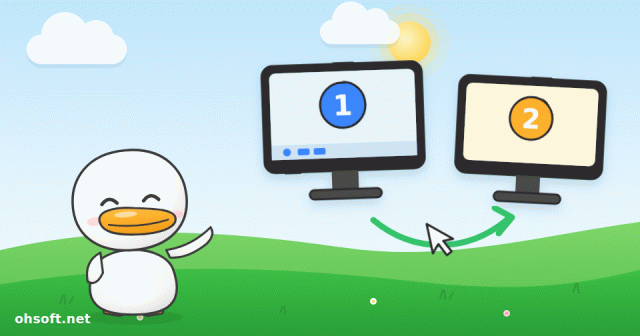
If the mouse jumps to the wrong side, programs keep opening on the small screen, or text looks much bigger on one monitor, Windows simply doesn't know how your two monitors are really set up on the desk. You can fix all of it from one settings page.
Step 1: Match the layout to your desk
- Right-click an empty spot on the desktop and open Display settings.
- At the top you'll see boxes numbered 1 and 2. Click Identify to show the big number on each monitor.
- Drag the boxes so they match where the monitors really sit, then click Apply. The left monitor goes on the left, a monitor mounted above goes on top.
- If the two monitors sit at different heights, line the boxes up vertically as well, so the mouse doesn't jump when it crosses the edge.
Step 2: Change the main display
- Select the monitor where you want the taskbar and new windows, scroll down and tick Make this my main display.
- To show the taskbar on the second monitor too, go to Settings → Personalization → Taskbar → Taskbar behaviors → Show my taskbar on all displays.
Step 3: Extend or duplicate
- Press Win + P to choose quickly.
- Extend: use both screens as one wide desk. This is what most people want.
- Duplicate: show the same thing on both. Handy for presentations or a TV.
- PC screen only / Second screen only: turn on just one.
Step 4: Match text size (scale) and resolution
- Each monitor has its own settings. Select a monitor at the top, then change Scale and Display resolution.
- The resolution marked "(Recommended)" is the sharpest.
- If you mix a 4K monitor with a regular one, set the 4K monitor to about 150% so text looks about the same size on both.
Handy shortcuts
- Win + Shift + Left/Right: move the current window straight to the other monitor.
- Win + Left/Right/Up: snap a window to half the screen or maximize it.
- To close a laptop lid and use only the external monitor, set Control Panel → Power Options → Choose what closing the lid does to "Do nothing".
- If a window is stuck on a screen you've unplugged, select it in the taskbar and bring it back with Win + Shift + Left/Right.
If the second monitor isn't detected at all
- In Display settings, open Multiple displays → Detect.
- Check that the monitor's own menu is set to the right input (HDMI or DP), and try a different port or cable.
- On a desktop, plug both monitors into the graphics card and update the graphics driver.
Reference: Microsoft Support – How to use multiple monitors in Windows
Blog
- Atlas Tested on Wheels, JPMorgan Sees Up to 400,000 US Humanoids by 2030, Tesla Optimus Production Begins
- Turn On Windows Ransomware Protection (Controlled Folder Access) and Allow Apps When Saving Fails
- Recover Accidentally Deleted Files: From the Recycle Bin to Previous Versions and Windows File Recovery
- Is Your 144Hz Monitor Stuck at 60Hz? How to Set the Right Refresh Rate in Windows
- YouTube Streams Return to the Billboard Charts in 2027, and Drake Says the Game Is "Cooked"
- Tesla Robotaxi Now Runs 24/7 in Every City · Musk: Optimus Will "Probably" Be Rented, Not Sold
- Got a Blue Screen? How to Read the Stop Code and What to Try First (Windows 10 and 11)
- Can't Switch Keyboard Language in Windows? Fixes for Win + Space, the Language Bar and the Korean Han/Eng Key