Protect Your PC When You Step Away: Win+L, Dynamic Lock and Automatic Lock With the Screen Saver (Windows 11)
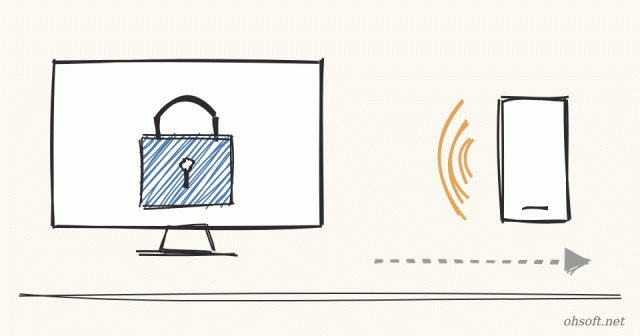
If you leave your PC unlocked while you step away at the office, a café or a library, anyone can see your files, email and the sites you're signed in to. Set up both a quick habit for locking it yourself and a way for Windows to lock it automatically when you forget.
1. When you get up: Win + L
- Press Windows logo key + L to switch to the lock screen right away. Open programs and recordings keep running.
- You can also press Ctrl + Alt + Delete and choose Lock.
- When you come back, sign in with your PIN, password, face or fingerprint and carry on where you left off.
2. Automatically when you walk away with your phone: Dynamic lock
- First, pair your phone with your PC over Bluetooth in Settings → Bluetooth & devices → Add device.
- In Settings → Accounts → Sign-in options → Dynamic lock, check Allow Windows to automatically lock your device when you're away.
- When you take your phone out of Bluetooth range, the PC locks about a minute later. It doesn't unlock by itself when you return, so sign in as usual.
- Because it takes a while to lock, treat it as a safety net for when you forget, not as a replacement for Win + L.
3. After a few idle minutes: lock with the screen saver
- Open Settings → Personalization → Lock screen → Screen saver.
- Pick a screen saver (Blank is fine), set Wait to about 5 to 10 minutes, check On resume, display logon screen, and click OK.
- Now, if you don't touch the keyboard or mouse for that long, the screen saver starts and you have to sign in again. A long recording you've left running won't stop.
4. Require sign-in when waking from sleep
- In Settings → Accounts → Sign-in options, set If you've been away, when should Windows require you to sign in again? to When PC wakes up from sleep.
- In Settings → System → Power (& battery) → Screen, sleep & hibernate timeouts, keep the screen-off and sleep times reasonably short for extra protection.
- If you don't want message contents to appear on the lock screen, turn off lock screen notifications in Settings → System → Notifications.
Sources: Microsoft Support – Lock Windows automatically (Dynamic lock), Microsoft Support – Keyboard shortcuts in Windows
Blog
- Blurry or Fuzzy Text on Your Monitor? Tune ClearType and Change High-DPI Settings per App (Windows 11)
- Webcam Not Detected or Showing a Black Screen? Check Camera Privacy Settings, Drivers and Apps Using It (Windows 11)
- Windows Acting Up With Strange Errors? Repair Corrupted System Files With SFC and DISM (Windows 10 and 11)
- Videos, Photos or PDFs Opening in the Wrong App? Change Default Apps by File Type in Windows 11
- New SSD or Hard Drive Not Showing in This PC? Initialize It and Assign a Drive Letter in Disk Management (Windows 10 and 11)
- Windows Won't Start Normally? 3 Ways to Boot Into Safe Mode (Shift + Restart, Settings, msconfig)
- "Scan and Fix" Drive Message? How to Check and Repair Disk Errors With chkdsk (Windows 10 and 11)
- Windows Update Keeps Replacing Your Graphics or Device Drivers? How to Stop Automatic Driver Installs (Device Installation Settings, Group Policy)