Videos, Photos or PDFs Opening in the Wrong App? Change Default Apps by File Type in Windows 11
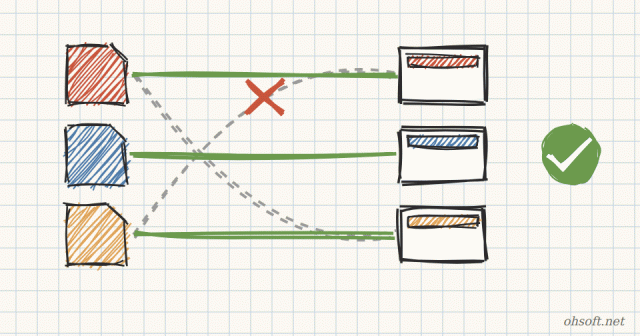
After an update or a new program install, your recorded videos may suddenly open in a different player, or PDFs may open in the browser. In Windows 11 you can choose which app opens each file type (extension).
1. Change it right from the file (the quickest way)
- Right-click a file of the type you want to change (for example, .mp4) → Open with → Choose another app.
- Pick the app you want and click Always. From now on, every file of that type opens in that app. "Just once" opens it in that app only this time.
- If the app you want isn't listed, use "Choose an app on your PC" at the bottom and select the program's .exe file yourself.
2. Change it by extension in Settings
- Go to Settings → Apps → Default apps.
- In the Set a default for a file type or link type box at the top, type an extension such as
.mp4,.jpgor.pdf. - Click the current app shown below and switch it to the one you want. Videos come in several formats (.mp4, .mkv, .avi) and so do photos (.jpg, .png), so change each one.
3. Many formats for one app at once
- In the app list further down the same screen, click the app you want (for example, your usual video player). You'll see every extension it can open.
- Click the current app under each extension and switch it to this app. For a browser, the Set default button at the top changes web links, .htm, .pdf and more at once.
4. Go back to the original settings
- At the bottom of Settings → Apps → Default apps, click Reset next to Reset all default apps. All file associations go back to the apps Windows chose originally (Photos, Media Player, Edge and so on).
- Resetting also removes the associations you set yourself, so set your usual formats again with method 1 or 2.
- If your choice keeps changing back, check whether the program that takes over that format has an option such as "register as default program" turned on in its own settings.
Blog
- When Windows Security (Defender) Blocks a Safe Program: How to Restore Quarantined Files and Add Exclusions
- Screen Flickering or Going Black? Restart the Graphics Driver (Win+Ctrl+Shift+B) and Roll Back the Driver
- Windows Clock Keeps Showing the Wrong Time? How to Sync Time and Fix the Time Zone (Windows 10 and 11)
- Blurry or Fuzzy Text on Your Monitor? Tune ClearType and Change High-DPI Settings per App (Windows 11)
- Webcam Not Detected or Showing a Black Screen? Check Camera Privacy Settings, Drivers and Apps Using It (Windows 11)
- Windows Acting Up With Strange Errors? Repair Corrupted System Files With SFC and DISM (Windows 10 and 11)
- New SSD or Hard Drive Not Showing in This PC? Initialize It and Assign a Drive Letter in Disk Management (Windows 10 and 11)
- Windows Won't Start Normally? 3 Ways to Boot Into Safe Mode (Shift + Restart, Settings, msconfig)