PC Booting Slowly? Speed It Up by Turning Off Startup Apps
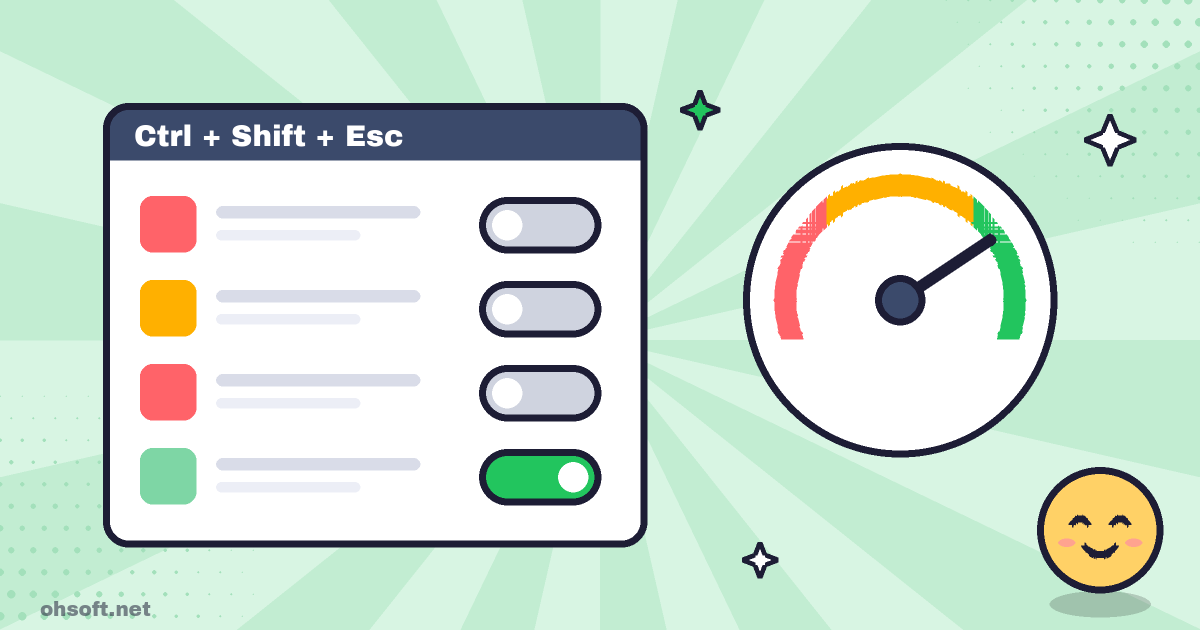
A new PC feels fast, but a few months later it can take ages to start. The most common reason is startup apps: programs that register themselves to launch with Windows every time you install something. Turning off just a few of them can make the first minutes after boot much smoother.
Step 1: Open startup apps in Task Manager
- Press Ctrl + Shift + Esc to open Task Manager directly.
- Click Startup apps in the left menu (on Windows 10, the "Startup" tab at the top).
- Click the "Startup impact" column to sort it so the "High" items come first. Start with those.
Step 2: Turn off what you don't need
- Right-click an app and choose Disable.
- This does not uninstall anything. It only stops the app from starting automatically, so you can still open it yourself when you need it.
- You can also toggle the same list in Settings → Apps → Startup.
What's usually safe to disable and what to keep
- Usually safe to disable: game launchers (Steam, Epic and others), music and video apps, cloud sync apps you rarely use, update helpers, and messengers you don't need right at startup.
- Keep enabled: antivirus and security software (including the Windows Security notification icon), audio, touchpad and graphics driver items, and Bluetooth, keyboard or mouse utilities.
- If you can't tell what something is, right-click it and choose "Search online" before deciding.
Still slow?
- In Settings → System → Storage, make sure at least 10% of the C: drive is free.
- Install all pending Windows updates and choose Restart once (restart finishes updates more reliably than shutting down).
- On an older PC with a hard disk drive (HDD), switching to an SSD gives the biggest boost.
Blog
- How to Buy Apple Products Cheaply (Latest Tips)
- Gemini 4 Carbon, GPT-6.1 Terra, Anthropic's S-1 Filing and More
- Anthropic Unveils 'Channels' to Control Claude Code Sessions Directly from Mobile
- Jensen Huang Admits Affair as Nvidia Opens Probe, METR on Anthropic, ChatGPT Images 2.6 and More
- How to See Saved Wi-Fi Passwords in Windows (Settings and Command Prompt)
- Show File Extensions in Windows – Spot Malware Disguised as a PDF
- Paste From Everything You Copied – How to Use Windows Clipboard History (Win+V)
- Find and Save Your Windows BitLocker Recovery Key Before You Need It