How to Make a Windows 11 Installation USB (Media Creation Tool)
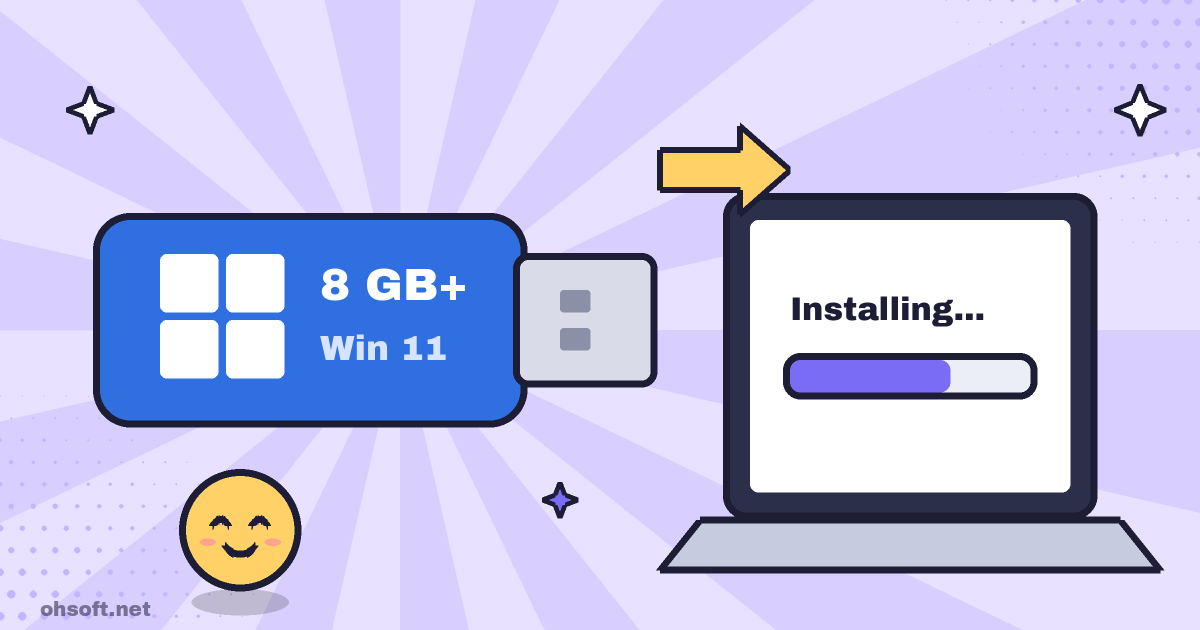
Whether you are setting up a new PC, doing a clean reinstall on a PC that has become too slow or fixing a PC that won't boot, a Windows 11 installation USB is good to have. You can make one for free with Microsoft's official tool.
What you need
- A blank USB drive of 8 GB or more. Everything on the USB drive will be erased while it is being made.
- A Windows PC with an internet connection (only needed while making the USB).
- To check whether the target PC meets the Windows 11 minimum requirements (TPM 2.0, Secure Boot and so on), use Settings → Windows Update or the PC Health Check app.
Step 1: Download the Media Creation Tool
- On Microsoft's Windows 11 download page, click Download Now under "Create Windows 11 Installation Media".
- Always download it from the official page, not from files posted on other sites.
Step 2: Create the USB
- Run the tool and accept the license terms.
- Check the language and edition. If the USB is for another PC, untick "Use the recommended options for this PC" to choose them yourself.
- Choose USB flash drive as the media to use, then select the USB drive you plugged in.
- Wait for the download and writing to finish. Depending on your internet speed, it can take tens of minutes.
Step 3: Boot from the USB and install
- Plug the USB into the target PC, turn it on and immediately press the boot menu key several times. It depends on the manufacturer, but it is usually F12, F11, F9, F8 or Esc.
- Choose the USB in the boot menu to open Windows Setup, then follow the on-screen steps to pick a language and the drive to install on.
- If the PC can still start Windows, you can also open the USB and run
setup.exe.
Check before you install
- A clean install erases every file on the drive you choose. Back up important files to an external disk or the cloud first.
- If the PC is encrypted with BitLocker, check your recovery key beforehand.
- If the PC was activated before, reinstalling the same edition usually activates automatically once it is online.
Source: Microsoft – Download Windows 11
Blog
- Jensen Huang Admits Affair as Nvidia Opens Probe, METR on Anthropic, ChatGPT Images 2.6 and More
- How to See Saved Wi-Fi Passwords in Windows (Settings and Command Prompt)
- Show File Extensions in Windows – Spot Malware Disguised as a PDF
- Paste From Everything You Copied – How to Use Windows Clipboard History (Win+V)
- PC Booting Slowly? Speed It Up by Turning Off Startup Apps
- Find and Save Your Windows BitLocker Recovery Key Before You Need It
- How to Create a System Restore Point in Windows and Roll Back Your PC
- C: Drive Running Out of Space? How to Free Up Storage in Windows