How to Fix a Slow or Not Responding File Explorer in Windows 11
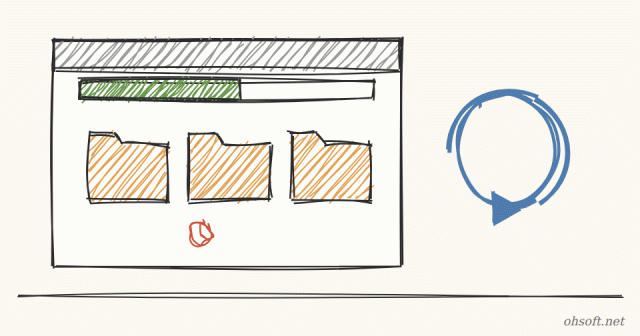
If the green bar in the address bar crawls along every time you open a folder, or File Explorer freezes with "Not Responding", work through the steps below. Most cases are solved in the first few steps.
1. Restart only File Explorer
- Press Ctrl + Shift + Esc to open Task Manager.
- Find "Windows Explorer", right-click it and choose Restart. The taskbar disappears for a moment and comes back.
- It is the fastest fix because you do not have to restart the whole PC.
2. Clear the recent history
- Open … → Options at the top of File Explorer.
- Under "Privacy", click Clear, and uncheck "Show recently used files" if you do not need it.
- Entries from disconnected network drives or USB sticks can make the Home page wait every time it opens.
3. Optimize folders for "General items"
- Folders full of photos and videos can slow down while thumbnails are generated.
- Right-click a slow folder → Properties → Customize tab, set "Optimize this folder for" to General items, and check "Also apply this template to all subfolders".
4. Turn off the Preview and Details panes
- Under View → Show at the top of File Explorer, turn off "Preview pane" and "Details pane".
- Explorer often freezes because it loads a preview every time you click a large video or PDF.
If it is still slow
- Update or temporarily disable programs that add items to Explorer's menus, such as archivers or cloud sync tools.
- Run sfc /scannow in an administrator Command Prompt to check system files.
- If a folder holds many oCam recordings, splitting them into subfolders by date makes it open faster.
Reference: Microsoft Support – File Explorer in Windows
Blog
- OpenAI Releases GPT-6.2 Astra and Sol, Cuts Astra API Price by 20%
- Windows Hello PIN or Face Sign-in Not Working? How to Fix It
- 6 Fixes When Windows Search or the Start Menu Stops Working
- Windows 11 Feels Slow or Recordings Stutter? How to Switch the Power Mode to Best Performance
- Your AI Prompts Were Being Secretly Kept: What a Security Firm Found With 2 Million Test Prompts
- Nvidia Reinstates Jensen Huang as CEO 12 Days After His Exit, Stock Jumps 31%
- Getting "Out of Memory" While Recording or Editing? How to Check and Set Virtual Memory (Page File)
- How to Check Your Windows Activation Status and Fix Error 0x80041008 After the November Update