How to Check That a Downloaded Program Is Genuine: File Hashes (certutil, Get-FileHash) and Digital Signatures (Windows 10/11)
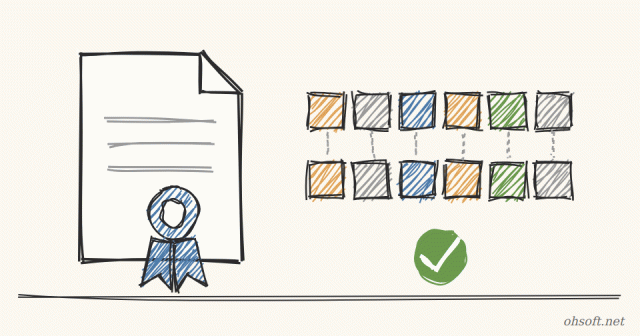
A site you found through search can look official and still hand out fake installers. There have even been recent reports of official download files being swapped. Spending one minute on the digital signature and the hash before you run an installer catches most of these.
1. Check the digital signature: who made this file?
- Right-click the downloaded file and open Properties.
- On the Digital Signatures tab, check that the Name of signer matches the company that makes the program.
- Select the signature and click Details. The top should say "This digital signature is OK." If it says the signature is invalid, do not run the file.
- If there is no Digital Signatures tab at all, the file is unsigned. Small hobby programs are sometimes unsigned, but a program from a large company without a signature is suspicious.
- The User Account Control window that appears when you run it also shows the Verified publisher. If it says "Unknown", check again.
- For example, the official oCam installer is signed by OORT Inc.
2. Check the hash: is it identical to the official file?
A hash is a long string calculated from a file's contents. Change a single byte and the value is completely different. If the developer publishes a hash (usually SHA-256), compare it with your file.
- PowerShell: open PowerShell from the Start menu, type
Get-FileHashfollowed by a space, drag the file into the window and press Enter. It shows the SHA-256 value by default. - Command Prompt: type
certutil -hashfile "file path" SHA256. - Compare the result with the value on the official page from start to finish. Upper and lower case do not matter. Do not stop at the first few characters; paste both into Notepad and use Ctrl + F to make it easy.
3. What is the "Unblock" check box?
- At the bottom of the General tab of a downloaded file you may see "This file came from another computer…" and an Unblock check box.
- This is Windows marking the file as "from the internet", which is why SmartScreen warns you before running it.
- Ticking it removes that warning, so only tick it after the signature and hash check out. Never unblock an unverified file just to make the warning go away.
If you still have doubts
- Right-click the file and choose Show more options → Scan with Microsoft Defender.
- If the file size is far from what the official page says (for example, an installer of about 10 MB that is over 100 MB), do not run it.
- Downloading installers directly from the developer's official site is safer than using download sites from search results.
Sources: Microsoft Learn – Get-FileHash, Microsoft Learn – certutil, Microsoft Learn – Unblock-File
Blog
- Videos, Photos or PDFs Opening in the Wrong App? Change Default Apps by File Type in Windows 11
- New SSD or Hard Drive Not Showing in This PC? Initialize It and Assign a Drive Letter in Disk Management (Windows 10 and 11)
- Windows Won't Start Normally? 3 Ways to Boot Into Safe Mode (Shift + Restart, Settings, msconfig)
- "Scan and Fix" Drive Message? How to Check and Repair Disk Errors With chkdsk (Windows 10 and 11)
- Windows Update Keeps Replacing Your Graphics or Device Drivers? How to Stop Automatic Driver Installs (Device Installation Settings, Group Policy)
- Protect Your PC When You Step Away: Win+L, Dynamic Lock and Automatic Lock With the Screen Saver (Windows 11)
- How to Block or Allow Internet Access for One Program: Windows Firewall Allowed Apps and Outbound Rules (Windows 10/11)
- Blank Icons or Missing Video Thumbnails in File Explorer? How to Rebuild the Icon Cache and Thumbnail Cache (Windows 11)