Blank Icons or Missing Video Thumbnails in File Explorer? How to Rebuild the Icon Cache and Thumbnail Cache (Windows 11)
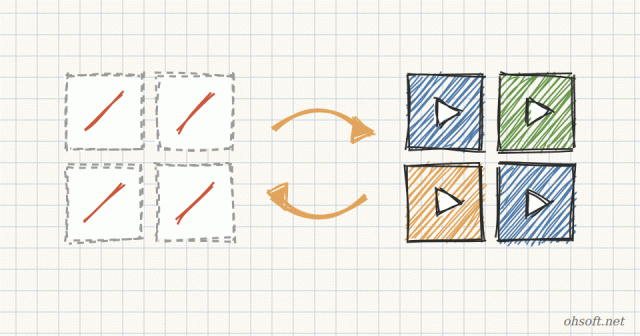
Sometimes desktop or File Explorer icons turn into blank white pages, or your recorded videos show the same generic icon instead of a preview. Usually the cache Windows keeps to show icons and previews quickly has gone wrong. Try the steps below, starting with the easiest.
First check: are previews turned off?
- In File Explorer, open View and choose Large icons or Extra large icons. The Details and List views do not show previews.
- In File Explorer, go to ⋯ → Options → View. If Always show icons, never thumbnails is ticked, untick it.
- Formats such as MKV or HEVC (H.265) may not show previews if Windows lacks the right codec. Check whether the file plays in a video app.
1. Restart File Explorer
- Press Ctrl + Shift + Esc to open Task Manager.
- Under Processes, right-click Windows Explorer and choose Restart. When the taskbar disappears and comes back, you are done.
2. Clear the thumbnail cache (video and photo previews)
- Search for Disk Cleanup in the Start menu, open it and choose the C drive.
- Tick only Thumbnails in the list, then click OK → Delete Files.
- You can also remove the same item from Settings → System → Storage → Temporary files.
- The first time you open a folder afterwards, it may be slow for a moment while previews are rebuilt, especially in folders full of recordings.
3. Clear the icon cache (when icons turn blank)
Save your work and close File Explorer windows, then open Command Prompt from the Start menu and enter the lines below one at a time. After the first line, the taskbar and desktop disappear briefly; that is normal.
taskkill /f /im explorer.exedel /a /f /q "%localappdata%\IconCache.db"del /a /f /q "%localappdata%\Microsoft\Windows\Explorer\iconcache*"start explorer.exe
- If a file will not delete because it is "being used by another process", restart the PC and try again.
- These are only temporary files that Windows rebuilds, so your own files and settings are not affected.
If it still does not work
- If only one program's icon is broken, delete its shortcut and create a new one, or reinstall the program.
- If all the desktop icons look wrong, a simple restart sometimes fixes it.
Blog
- Videos, Photos or PDFs Opening in the Wrong App? Change Default Apps by File Type in Windows 11
- New SSD or Hard Drive Not Showing in This PC? Initialize It and Assign a Drive Letter in Disk Management (Windows 10 and 11)
- Windows Won't Start Normally? 3 Ways to Boot Into Safe Mode (Shift + Restart, Settings, msconfig)
- "Scan and Fix" Drive Message? How to Check and Repair Disk Errors With chkdsk (Windows 10 and 11)
- Windows Update Keeps Replacing Your Graphics or Device Drivers? How to Stop Automatic Driver Installs (Device Installation Settings, Group Policy)
- Protect Your PC When You Step Away: Win+L, Dynamic Lock and Automatic Lock With the Screen Saver (Windows 11)
- How to Block or Allow Internet Access for One Program: Windows Firewall Allowed Apps and Outbound Rules (Windows 10/11)
- How to Check That a Downloaded Program Is Genuine: File Hashes (certutil, Get-FileHash) and Digital Signatures (Windows 10/11)