USB Drive Not Recognized in Windows? 6 Things to Check
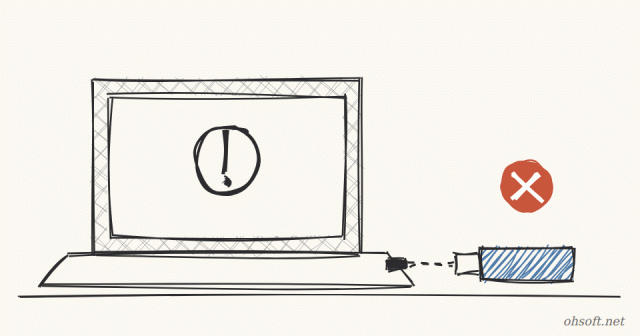
Sometimes you plug in a USB stick or external drive and nothing happens, or you only get a "USB device not recognized" notice. The cause is usually the port, power, a driver or a missing drive letter. Check the easy things first, in this order.
1. Try another port or another PC
- On a desktop, use a rear port (wired straight to the motherboard) instead of the front panel. Front ports and USB hubs often supply less power.
- If another PC or a TV cannot see it either, the USB device itself is probably the problem.
- For external hard drives, a bad cable is common, so try a different cable too.
2. Fully restart the PC
- Because of Windows Fast Startup, shutting down may not fully reset the USB controller.
- Choosing Restart from the Start menu starts everything fresh. Unplug the USB device, restart, then plug it back in.
3. Give it a drive letter in Disk Management
- Right-click the Start button and open Disk Management.
- If the USB drive appears in the list but not in File Explorer, it has no drive letter.
- Right-click its partition → Change Drive Letter and Paths → Add, and assign a free letter (for example E).
- If it shows as "Unallocated" or "RAW", Windows may ask you to format it. Formatting erases the data, so try recovering important files first.
4. Reinstall the driver in Device Manager
- Right-click the Start button and open Device Manager.
- If Disk drives or Universal Serial Bus controllers shows a yellow exclamation mark or "Unknown USB Device", right-click it and choose Uninstall device.
- Unplug the USB device and plug it back in. Windows installs the driver again.
5. Turn off USB selective suspend
- If a USB device drops out a little while after you plug it into a laptop, power saving may be the cause.
- Open Control Panel → Power Options → Change plan settings for your plan → Change advanced power settings.
- Set USB settings → USB selective suspend setting to Disabled.
- It also helps to open each USB Root Hub in Device Manager, go to the Power Management tab, and uncheck "Allow the computer to turn off this device to save power".
6. Chipset drivers and Windows Update
- Install the latest chipset driver from your laptop or motherboard maker's website. It includes the USB controller driver.
- If Settings → Windows Update → Advanced options → Optional updates lists driver updates, install those too.
Reference: Microsoft Support – Fix USB-C problems in Windows
Blog
- Humanoid Robots Join China Post: Sorting Parcels at 11 Hubs in 8 Guangdong Cities, 1,500 an Hour
- Tesla Doubles Its Miami Robotaxi Area, and Musk Says Owner Cars "May Start Trials Next Month"
- Reinstall Windows 11 Without a USB Drive: How to Use the New Cloud Rebuild
- Bluetooth Headphones or Speakers Keep Disconnecting? How to Fix It (Windows 10 & 11)
- Games Slower After an Update? How to Check and Toggle Memory Integrity in Windows 11
- Anthropic Goes Public on Nasdaq With a Record $81.3 Billion IPO, Closes Day One Up 17%
- C Drive Full? How to Safely Move Your Desktop, Documents and Videos Folders to the D Drive
- Windows 11 Update Fails at 99%? How to Fix Install Errors 0x800f0993 and 0x800f0989