Reinstall Windows 11 Without a USB Drive: How to Use the New Cloud Rebuild
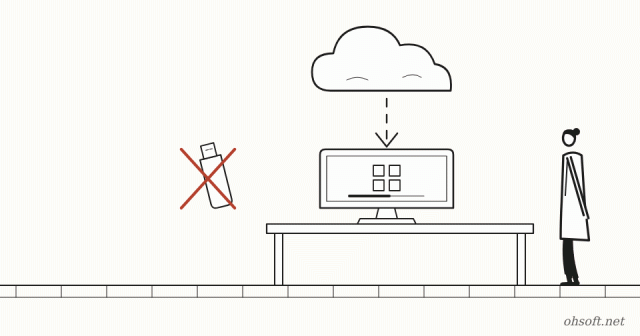
When Windows is so broken that it won't even boot, you used to need another PC to make an installation USB. Windows 11 now has a recovery feature called Cloud rebuild. It downloads a fresh copy of Windows and drivers from the internet and reinstalls them itself, so no USB drive is needed.
Know this first: everything is erased
- Cloud rebuild removes all personal files, accounts, apps and settings and installs Windows fresh. There's no option to keep your files.
- Files saved in OneDrive or another cloud service aren't affected. Back up everything else to an external drive first.
- If you want to keep your files, try Reset this PC (Keep my files) first. Microsoft itself says to try Cloud rebuild if Reset this PC doesn't work.
What you need
- Windows 11 with the October 2026 non-security update (KB5127936) or later.
- An internet connection: Ethernet connects automatically; for Wi-Fi you pick the network and enter its password during the process.
- For a laptop, plug in the charger. It won't start on battery (error 0x8007027F).
If Windows starts: begin from Settings
- Go to Settings → System → Recovery.
- Next to Rebuild this PC, select Rebuild PC. The PC restarts into the recovery environment and Cloud rebuild begins.
If Windows won't start: begin from the recovery screen
- After several failed boots, Windows opens the blue recovery screen (Windows RE) automatically.
- Choose Choose an option → Troubleshoot → Cloud rebuild.
The steps
- Connect to a network and wait while it gets ready.
- Choose how to remove your files.
- Remove files: faster, but someone with special recovery tools might still recover some of them. Choose this if you'll keep using the PC.
- Remove & sanitize: takes longer but makes recovery much harder. Choose this when selling or giving the PC away. With more than one disk, you choose between "Windows disk only" and "All disks".
- Check the Windows version, edition and language, then select Continue. Windows downloads and installs, and may restart several times.
- When it finishes, setup starts as on a new PC. Sign in with your Microsoft account to restore apps and settings saved by Windows Backup.
Important
- Don't turn off or restart the PC while it runs. If it's interrupted, Windows might not start at all.
- How long it takes depends on your internet speed and PC, and sanitizing takes much longer. Do it when you have time.
- Error 0x800704C6 means no internet connection; 0xc1900200 means the PC doesn't meet Windows 11 requirements (most often TPM is turned off in the BIOS).
Reference: Microsoft Support – Cloud rebuild in Windows
Blog
- How to Check Your PC Specs: CPU, RAM, Graphics Card and Motherboard (Windows 10 and 11)
- Print Job Stuck in the Queue? How to Clear It and Get Your Printer Working Again (Windows 11)
- "Held Emails Will Be Deleted in 24 Hours": Beware Fake Emails Exploiting the Microsoft 365 Outage
- YouTube View Counts Now Include TV "Co-Views": One Play Can Count as Three, but Not for Pay
- Humanoid Robots Join China Post: Sorting Parcels at 11 Hubs in 8 Guangdong Cities, 1,500 an Hour
- Tesla Doubles Its Miami Robotaxi Area, and Musk Says Owner Cars "May Start Trials Next Month"
- Bluetooth Headphones or Speakers Keep Disconnecting? How to Fix It (Windows 10 & 11)
- Games Slower After an Update? How to Check and Toggle Memory Integrity in Windows 11