C Drive Full? How to Safely Move Your Desktop, Documents and Videos Folders to the D Drive
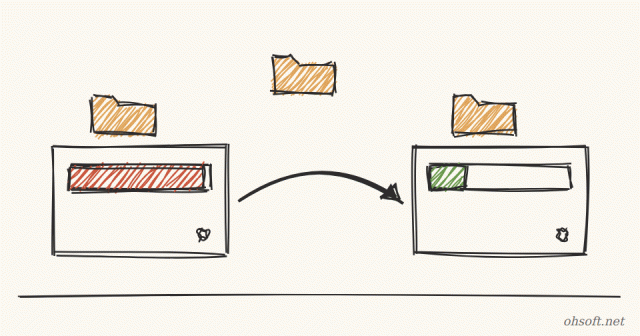
Windows keeps your Desktop, Documents, Downloads and Videos folders on the C drive. If you record video or download large files often, the C drive fills up quickly, and then Windows updates fail and the PC slows down. If you have a separate D drive, moving these folders there as a whole is the cleanest fix.
Before you move anything
- Open This PC in File Explorer and make sure you have a D drive with enough free space.
- Don't move them to a removable drive such as a USB stick or external hard drive. When it's unplugged, your desktop looks empty and programs can throw errors.
- If OneDrive folder backup is on for a folder, it's safer to turn the backup off in OneDrive settings first.
1. Create new folders on the D drive
- Create a destination such as
D:\MyFolders\Videos. Make a separate folder for each one (Desktop, Documents, Videos and so on). - Don't pick the root of the drive (D:\) itself. Undoing it later gets very messy because everything on the drive gets mixed together.
2. Move it with the Location tab
- In File Explorer, right-click Videos (or Desktop, Documents, Downloads) on the left and open Properties.
- On the Location tab, click Move and choose the D drive folder you created in step 1.
- Click OK. Windows asks "Do you want to move all of the files from the old location to the new location?" Click Yes to move the files inside as well.
- If there are many files it can take a few minutes, so wait until it finishes. Move the other folders the same way, one at a time.
3. Check where your recording program saves
- Most recording and download programs save to the Videos or Downloads folder, so after the move they save to the D drive automatically.
- Some programs store their own path, so check their settings once. In oCam, open Settings → Save on the main window and change the save path to your D drive folder.
If you want to undo it
- Open Properties → Location for the same folder and click Restore Default. It goes back to its original place on the C drive.
- Windows again asks whether to move the files. Click Yes.
What not to do
- Cutting and pasting the whole
C:\Usersfolder or theProgram Filesfolder can break Windows and your programs. Always use the Location tab method above. - To move an installed program, it's safer to uninstall it and reinstall it on the D drive.
Reference: Microsoft Support – Turning OneDrive folder backup on and off
Blog
- Humanoid Robots Join China Post: Sorting Parcels at 11 Hubs in 8 Guangdong Cities, 1,500 an Hour
- Tesla Doubles Its Miami Robotaxi Area, and Musk Says Owner Cars "May Start Trials Next Month"
- Reinstall Windows 11 Without a USB Drive: How to Use the New Cloud Rebuild
- Bluetooth Headphones or Speakers Keep Disconnecting? How to Fix It (Windows 10 & 11)
- Games Slower After an Update? How to Check and Toggle Memory Integrity in Windows 11
- Anthropic Goes Public on Nasdaq With a Record $81.3 Billion IPO, Closes Day One Up 17%
- USB Drive Not Recognized in Windows? 6 Things to Check
- Windows 11 Update Fails at 99%? How to Fix Install Errors 0x800f0993 and 0x800f0989