How to Check Your PC Specs: CPU, RAM, Graphics Card and Motherboard (Windows 10 and 11)
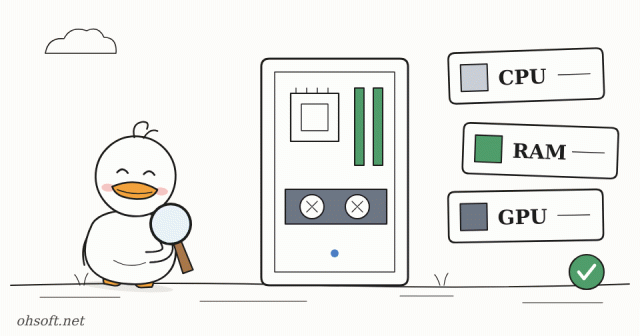
You need your PC's specs when you check a game's or program's minimum requirements, when you want to add RAM, or when you sell the PC. You can find all of it inside Windows without opening the case.
Fastest way: Settings → System → About
- Press Win + Pause, or go to Settings → System → About.
- You'll see the Processor (CPU name), Installed RAM, System type (64-bit or not) and, further down, Windows specifications (edition and version).
- In Windows 11, click Copy to copy the specs as text and paste them straight into a support email or chat.
Task Manager's Performance tab: RAM slots, graphics card and SSD
- Open Task Manager with Ctrl + Shift + Esc and click the Performance tab.
- CPU: the exact model plus the number of cores and logical processors.
- Memory: capacity, speed and Slots used (for example 2 of 4). A free slot means you can add more RAM.
- GPU: the graphics card name and Dedicated GPU memory. If you have both built-in and separate graphics, they appear as GPU 0 and GPU 1.
- Disk: next to the name it says whether the drive is an SSD or an HDD.
Graphics card details: dxdiag
- Press Win + R, type dxdiag and press Enter to open the DirectX Diagnostic Tool.
- The Display tab shows the graphics card maker, chip type, driver version and date. When you contact game support, attaching the text file from Save All Information makes things easier.
Exact motherboard and RAM models: msinfo32 and commands
- In Win + R → msinfo32, under System Summary, BaseBoard Manufacturer and BaseBoard Product are your motherboard model. The BIOS version is shown here too.
- When you add RAM, it's best to match the RAM already installed. Enter this command in Terminal to see the maker, part number, capacity and speed.
Get-CimInstance Win32_PhysicalMemory | Select-Object Manufacturer, PartNumber, Capacity, Speed- To see just the motherboard model:
Get-CimInstance Win32_BaseBoard | Select-Object Manufacturer, Product
When this helps
- Adding RAM: look up your motherboard model on the maker's website for the maximum capacity and type (DDR4/DDR5), then buy matching sticks for your free slots.
- Checking requirements for recording and editing software: screen recording and video editing run much more smoothly with a good CPU, enough RAM and a graphics card that supports hardware encoding.
- Buying or selling used: the copied text from Settings → About plus a photo of Task Manager's Performance tab is solid proof of the specs.
Reference: Microsoft Support – View your system info
Blog
- Set Up Dual Monitors Properly: Change the Main Display, Arrangement and Scaling (Windows 11)
- A Security-Testing AI Tool Turned Weapon: FBI Warns ARTEX Can Take Over Company Networks in 3 Hours
- PC Won't Wake From Sleep, or Wakes Up by Itself at Night? Fix It with powercfg
- PC Suddenly Slow? Find What Is Using 100% Disk or CPU in Task Manager (Windows 11)
- llama.cpp, the Tool for Running AI Offline on Your Own PC, Reaches Its First Stable Release 1.0 After 3.5 Years
- Tesla's "Optimus Academy": 10,000 to 20,000 Robots Learning Together, and Optimus May Plug In Robotaxis
- Too Many Notifications? Use Do Not Disturb, Focus and Per-App Settings in Windows 11
- Print Job Stuck in the Queue? How to Clear It and Get Your Printer Working Again (Windows 11)