llama.cpp, the Tool for Running AI Offline on Your Own PC, Reaches Its First Stable Release 1.0 After 3.5 Years
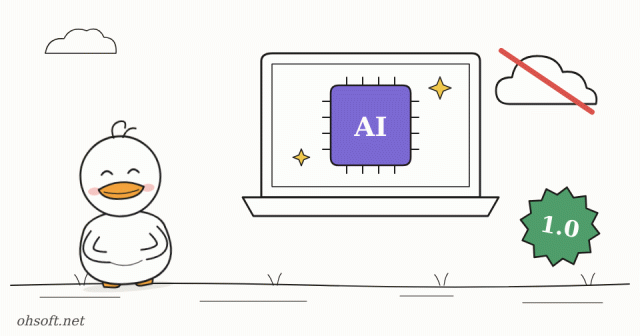
AI like ChatGPT usually runs on a company's servers across the internet. llama.cpp is the best-known free program that does the opposite: it runs AI models right on your own computer. On November 13, three and a half years after development began, it released its first stable version, 1.0.
What is llama.cpp?
- It's an open-source program that runs published AI model files (in GGUF format) on ordinary PCs, laptops and Macs. Many local AI apps use it as their engine.
- Your conversations never leave your PC, so you can use it with personal data or company documents with peace of mind, and it works even when you're offline.
- It's built by the ggml team led by developer Georgi Gerganov, which joined Hugging Face in February this year.
What's new in 1.0
- A version-number promise: from now on, existing integrations break only when the first number changes (1 → 2). Developers who build this engine into their apps can update with confidence.
- Memory savings: the data a model keeps during a conversation (the KV cache) can now be stored in a smaller format called FP8. For models made of many "expert" modules (MoE), there's a new option to keep only the often-used parts in graphics memory. The team doesn't promise that every model gets faster, though.
- Speech output: the built-in server gained a text-to-speech (TTS) feature that reads text aloud.
- Model support: it supports more than 150 model architecture variants.
- Tighter security: when you open a server that other devices can reach, running tools without authentication now has to be allowed explicitly, and your Hugging Face login token is sent only to huggingface.co by default.
- 36 old functions were removed, so some programs built on this engine may need an update.
Trying it on Windows
- You can get ready-made executables through winget, the Windows package manager, or from the GitHub releases page. Each channel may pick up 1.0 at a different time, so check the version.
- Download model files in GGUF format from Hugging Face. Things run smoothly only when you have more RAM (or graphics memory) than the model file size, so start with a small model.
- Run the built-in server and you get a ChatGPT-style chat screen in your browser.
- You can check your PC's RAM and graphics card right away in Windows Settings and on Task Manager's Performance tab.
Sources: Hugging Face blog – llama.cpp v1 · GitHub release v1.0.0 · Neurohive
Blog
- Set Up Dual Monitors Properly: Change the Main Display, Arrangement and Scaling (Windows 11)
- A Security-Testing AI Tool Turned Weapon: FBI Warns ARTEX Can Take Over Company Networks in 3 Hours
- PC Won't Wake From Sleep, or Wakes Up by Itself at Night? Fix It with powercfg
- PC Suddenly Slow? Find What Is Using 100% Disk or CPU in Task Manager (Windows 11)
- Tesla's "Optimus Academy": 10,000 to 20,000 Robots Learning Together, and Optimus May Plug In Robotaxis
- Too Many Notifications? Use Do Not Disturb, Focus and Per-App Settings in Windows 11
- How to Check Your PC Specs: CPU, RAM, Graphics Card and Motherboard (Windows 10 and 11)
- Print Job Stuck in the Queue? How to Clear It and Get Your Printer Working Again (Windows 11)