Bluetooth Headphones or Speakers Keep Disconnecting? How to Fix It (Windows 10 & 11)
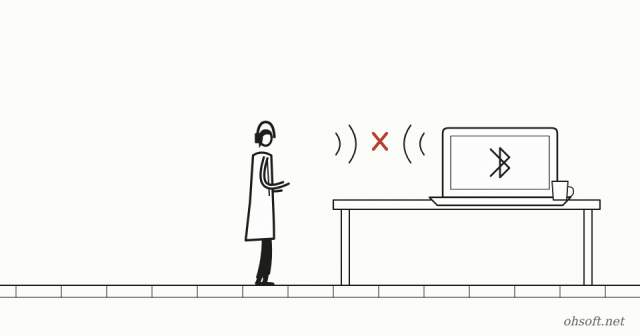
When Bluetooth earbuds or a speaker drop out every few minutes, or the sound keeps stuttering, video calls and watching videos both become a pain. The cause is usually one of three things: power saving, distance and interference, or drivers. Work through the checks below from the easiest.
1. Basic checks
- Make sure the earbuds have enough battery. A low battery makes the connection unstable first.
- Move the device closer to the PC, and avoid spots that block the signal, such as metal desks or behind the PC case.
- If the earbuds are also connected to your phone, they may jump to the phone and drop from the PC. Turn off Bluetooth on the phone for a moment.
2. Reduce Wi-Fi and USB 3.0 interference
- Bluetooth and 2.4 GHz Wi-Fi use the same frequency band. If your router supports it, connect the PC to 5 GHz Wi-Fi.
- A Bluetooth dongle plugged next to USB 3.0 ports or a USB hub picks up interference easily. Moving it a little away with a USB extension cable often helps.
3. Turn off Bluetooth power saving
- Right-click the Start button → Device Manager.
- Expand Bluetooth and double-click your Bluetooth adapter (for example, Intel Wireless Bluetooth).
- On the Power Management tab, untick Allow the computer to turn off this device to save power.
- If you use a USB dongle, do the same for the USB Root Hub entries under Universal Serial Bus controllers.
4. Remove the device and pair it again
- In Settings → Bluetooth & devices, click … next to the device and choose Remove device.
- Put the earbuds in pairing mode and connect them again with Add device.
- If the same earbuds appear more than once in the list, remove them all and pair again.
5. Muffled or choppy sound: check hands-free mode
- When a video-call app uses the earbuds' microphone, Windows switches to the call-quality Hands-Free mode and sound quality drops sharply.
- When you're not in a call, pick the "Headphones/Stereo" output in Settings → System → Sound, and switch the microphone to the PC's built-in mic.
6. Drivers and the troubleshooter
- Download the latest Bluetooth driver from your laptop or motherboard maker's website. Drivers sometimes also appear under Optional updates in Windows Update.
- Run Bluetooth from Settings → System → Troubleshoot → Other troubleshooters.
- Press Win + R → services.msc and make sure Bluetooth Support Service is "Running" with startup type "Automatic".
Reference: Microsoft Support – Fix Bluetooth problems in Windows
Blog
- How to Check Your PC Specs: CPU, RAM, Graphics Card and Motherboard (Windows 10 and 11)
- Print Job Stuck in the Queue? How to Clear It and Get Your Printer Working Again (Windows 11)
- "Held Emails Will Be Deleted in 24 Hours": Beware Fake Emails Exploiting the Microsoft 365 Outage
- YouTube View Counts Now Include TV "Co-Views": One Play Can Count as Three, but Not for Pay
- Humanoid Robots Join China Post: Sorting Parcels at 11 Hubs in 8 Guangdong Cities, 1,500 an Hour
- Tesla Doubles Its Miami Robotaxi Area, and Musk Says Owner Cars "May Start Trials Next Month"
- Reinstall Windows 11 Without a USB Drive: How to Use the New Cloud Rebuild
- Games Slower After an Update? How to Check and Toggle Memory Integrity in Windows 11