Show File Extensions in Windows – Spot Malware Disguised as a PDF
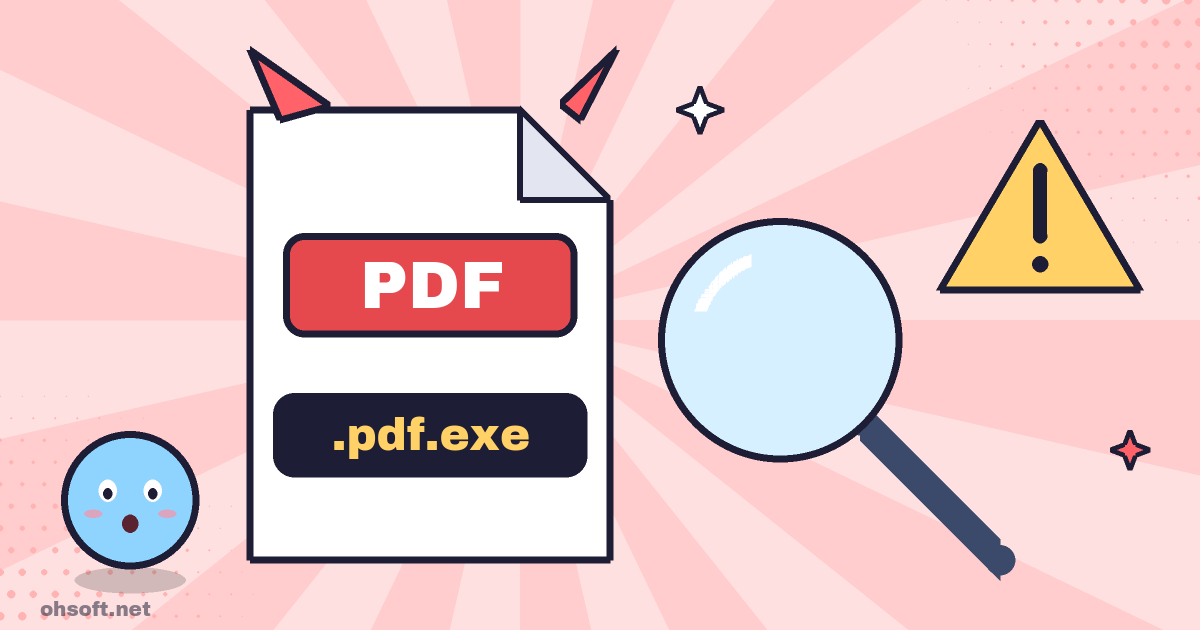
By default, Windows hides file extensions (the ending such as .pdf or .exe). So a program named invoice.pdf.exe shows up as invoice.pdf. This is one of the most common tricks for spreading malware through email attachments and messenger files, and one setting is enough to see through it.
How to show file extensions
- Windows 11: open File Explorer (Win + E) and choose View → Show → File name extensions.
- Windows 10: in File Explorer, open the View tab and tick "File name extensions".
- You only need to do this once. It applies to every folder.
Look twice before opening these
- Programs: .exe .scr .com .pif .msi. If you expected a document or photo and see one of these, don't open it.
- Scripts: .bat .cmd .js .vbs .ps1 .hta. Double-clicking runs commands right away.
- Shortcuts and disk images: .lnk .iso .img. When they arrive as attachments, they are often used to hide malicious files.
- Double extensions: in a name like
photo.jpg.exe, the last extension is the real file type.
Also keep in mind
- Icons can easily be made to look like a PDF, Word or other document. Check the extension, not the icon.
- Be suspicious if a compressed file from someone you don't know contains a program.
- Renaming an extension does not change what the file is. Leave the extension as it is when you rename a file.
Blog
- How to Buy Apple Products Cheaply (Latest Tips)
- Gemini 4 Carbon, GPT-6.1 Terra, Anthropic's S-1 Filing and More
- Anthropic Unveils 'Channels' to Control Claude Code Sessions Directly from Mobile
- Jensen Huang Admits Affair as Nvidia Opens Probe, METR on Anthropic, ChatGPT Images 2.6 and More
- How to See Saved Wi-Fi Passwords in Windows (Settings and Command Prompt)
- Paste From Everything You Copied – How to Use Windows Clipboard History (Win+V)
- PC Booting Slowly? Speed It Up by Turning Off Startup Apps
- Find and Save Your Windows BitLocker Recovery Key Before You Need It