When Windows Security (Defender) Blocks a Safe Program: How to Restore Quarantined Files and Add Exclusions
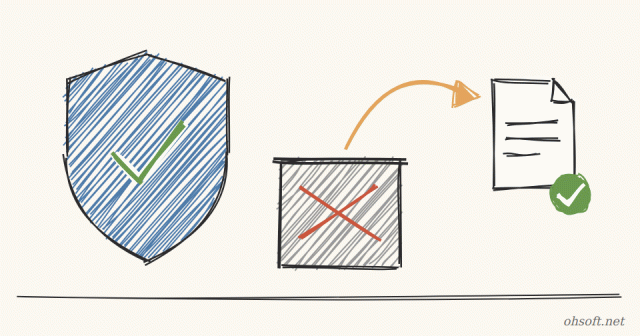
Sometimes an installer disappears right after you download it, or a recording or work file is deleted with a "Threats found" alert. If Windows Security (Microsoft Defender) wrongly flagged a safe file (a false positive), the deleted file is usually kept in quarantine and can be restored.
1. First, make sure the file is really safe
- Check that you downloaded it yourself from the official website. Don't restore email attachments, files from unknown sites, or "crack" and "free full version" files.
- If in doubt, upload it to a multi-engine scanning site such as VirusTotal and see what other antivirus engines say.
2. Restore a quarantined file
- Go to Windows Security → Virus & threat protection → Protection history.
- Click the matching entry (check the date and file path) to expand it, then choose Actions → Restore. The file returns to its original location.
- Choosing Allow on device stops the same file from being blocked again.
- This needs administrator rights, so click "Yes" if a User Account Control prompt appears.
3. If it keeps getting blocked: add an exclusion
- Go to Virus & threat protection → Manage settings under "Virus & threat protection settings" → Exclusions → Add or remove exclusions.
- Click Add an exclusion and choose File, Folder, File type or Process.
- Keep it as narrow as possible, such as one file or the one folder where the program is installed.
4. Be careful with exclusions
- Never exclude your whole Downloads folder or the entire C drive. Real malware that lands there would no longer be scanned.
- Once the problem is solved and an updated version of the program is no longer blocked, it is safer to remove the exclusion.
- You can report a wrongly blocked file as a false positive on the Microsoft Security Intelligence file submission page. Once confirmed, a later update stops it from being blocked for other users too.
Sources: Microsoft Support – Add an exclusion to Windows Security, Microsoft Security Intelligence – Submit a file
Blog
- Windows 11 Feels Slow or Recordings Stutter? How to Switch the Power Mode to Best Performance
- Your AI Prompts Were Being Secretly Kept: What a Security Firm Found With 2 Million Test Prompts
- Nvidia Reinstates Jensen Huang as CEO 12 Days After His Exit, Stock Jumps 31%
- Getting "Out of Memory" While Recording or Editing? How to Check and Set Virtual Memory (Page File)
- How to Fix a Slow or Not Responding File Explorer in Windows 11
- How to Check Your Windows Activation Status and Fix Error 0x80041008 After the November Update
- Screen Flickering or Going Black? Restart the Graphics Driver (Win+Ctrl+Shift+B) and Roll Back the Driver
- Windows Clock Keeps Showing the Wrong Time? How to Sync Time and Fix the Time Zone (Windows 10 and 11)