Paste From Everything You Copied – How to Use Windows Clipboard History (Win+V)
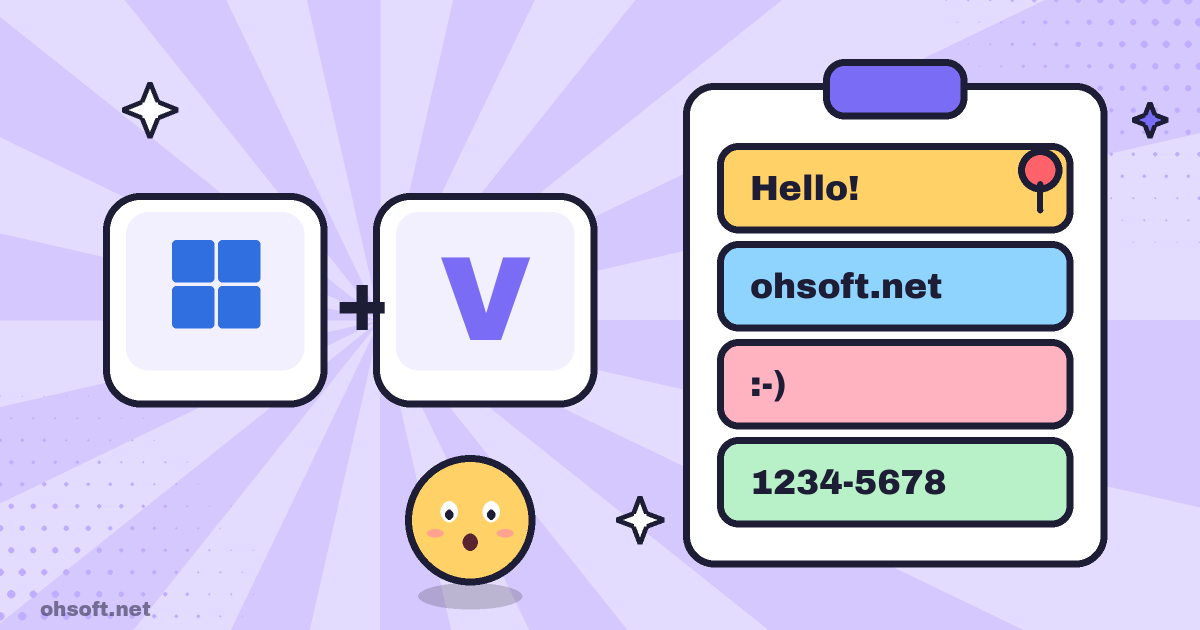
Normally, Ctrl+C keeps only the last thing you copied. Turn on clipboard history, which is built into Windows, and you can keep several recent texts and images and choose which one to paste. Once you try it, you will use it every day.
How to turn it on
- Press Windows key + V. The first time, click the Turn on button.
- Or go to Settings → System → Clipboard and turn on "Clipboard history".
- From now on, everything you copy is kept. Press Win + V wherever you want to paste and pick an item.
Handy features
- Pin: pin text you use often, such as an address, an account number or a greeting, with the pin icon. Pinned items stay even after a restart.
- Up to 25 items: unpinned items are cleared when you restart, and the oldest ones drop off after 25. Text, HTML and images up to 4 MB are saved.
- Emoji and symbols: the tabs at the top of the Win + V panel let you insert emoji, GIFs and special symbols.
- Sync across PCs: turn on "Share across devices" in Settings → System → Clipboard to paste on other PCs signed in with the same Microsoft account.
Privacy tips
- If you copied a password or a verification code, delete it from the Win + V panel with … → Delete.
- Clear all also removes pinned items, and turning clipboard history off clears everything saved.
- On a PC shared with other people, it is better to leave sync off.
Reference: Microsoft Support – Using the clipboard
Blog
- How to Buy Apple Products Cheaply (Latest Tips)
- Gemini 4 Carbon, GPT-6.1 Terra, Anthropic's S-1 Filing and More
- Anthropic Unveils 'Channels' to Control Claude Code Sessions Directly from Mobile
- Jensen Huang Admits Affair as Nvidia Opens Probe, METR on Anthropic, ChatGPT Images 2.6 and More
- How to See Saved Wi-Fi Passwords in Windows (Settings and Command Prompt)
- Show File Extensions in Windows – Spot Malware Disguised as a PDF
- PC Booting Slowly? Speed It Up by Turning Off Startup Apps
- Find and Save Your Windows BitLocker Recovery Key Before You Need It