Webcam Not Detected or Showing a Black Screen? Check Camera Privacy Settings, Drivers and Apps Using It (Windows 11)
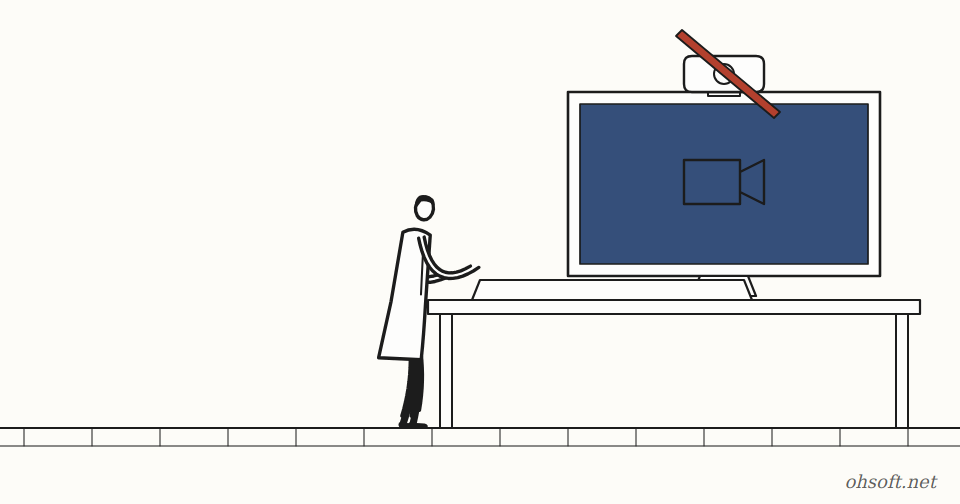
Sometimes your webcam doesn't show up when you start a video call or a screen recording, or it shows up but only displays a black screen. Most cases are solved by the steps below. Check them one by one from the top.
1. Check with the Windows Camera app first
- Open the Camera app from the Start menu. If you see a picture there, the webcam and its driver are fine, and the problem is the settings or permissions of the program you want to use.
- If the Camera app doesn't work either, go through steps 2 to 5.
2. Camera privacy settings
- Go to Settings → Privacy & security → Camera.
- Turn on Camera access and Let apps access your camera.
- Programs you install yourself, such as Zoom, Discord or a screen recorder, also need Let desktop apps access your camera further down. If it's off, those programs won't see the camera at all.
3. Lens cover and camera kill switch
- Many laptops have a small shutter over the lens or a key that turns the camera off (a camera icon on the F-key row). With the shutter closed you'll only see black.
- For a USB webcam, try another USB port and plug it straight into the PC instead of a hub.
4. Make sure no other app is using the camera
- A webcam can often be used by only one program at a time. If Zoom, Teams, Discord or a browser tab is running, other programs may show a black screen.
- Check Settings → Privacy & security → Camera → Recent activity to see which app used the camera, close that app completely, and try again.
5. Check the driver in Device Manager
- Right-click the Start button, open Device Manager, and expand Cameras or Imaging devices.
- A down-arrow icon means the device is disabled. Right-click it and choose Enable device.
- If there's a yellow exclamation mark, right-click → Uninstall device and restart your PC; Windows will reinstall the driver. On a laptop, installing the camera driver from the maker's website also helps.
- If the Camera app works but your recording program doesn't, select the camera device again in that program's settings.
Source: Microsoft Support – Manage app permissions for a camera in Windows
Blog
- How to Fix a Slow or Not Responding File Explorer in Windows 11
- How to Check Your Windows Activation Status and Fix Error 0x80041008 After the November Update
- When Windows Security (Defender) Blocks a Safe Program: How to Restore Quarantined Files and Add Exclusions
- Screen Flickering or Going Black? Restart the Graphics Driver (Win+Ctrl+Shift+B) and Roll Back the Driver
- Windows Clock Keeps Showing the Wrong Time? How to Sync Time and Fix the Time Zone (Windows 10 and 11)
- Blurry or Fuzzy Text on Your Monitor? Tune ClearType and Change High-DPI Settings per App (Windows 11)
- Free Invites, First Come First Served: 1 Week of Claude Pro (3 People) and a Pickle Invite Link (5 People)
- Windows Acting Up With Strange Errors? Repair Corrupted System Files With SFC and DISM (Windows 10 and 11)