Blurry or Fuzzy Text on Your Monitor? Tune ClearType and Change High-DPI Settings per App (Windows 11)
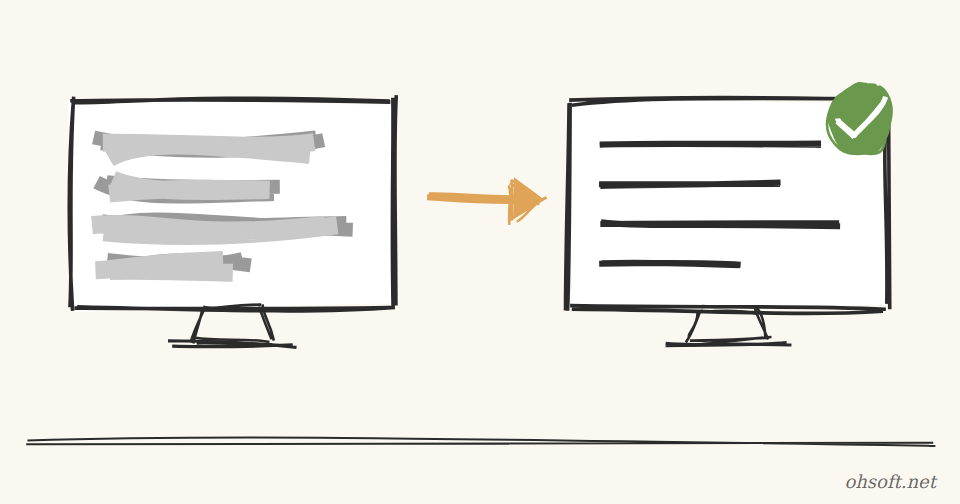
After connecting a new monitor or changing the scale, text can look fuzzy or smudged. The fix depends on whether the whole screen is blurry or only certain programs.
1. Set resolution and scale to "Recommended"
- In Settings → System → Display, set Display resolution to the value marked "(Recommended)". Anything lower than the monitor's native resolution makes the whole screen blurry.
- Set Scale to its "(Recommended)" value first as well. In-between values such as 125% or 150% make some programs blurry more easily.
2. Tune ClearType text
- Search for ClearType in the Start menu and open Adjust ClearType text.
- Check Turn on ClearType and click Next. You'll see five sets of sample text; pick the one that looks sharpest to you each time, and text rendering is tuned to your monitor.
- If you use two monitors, tune each one separately.
3. Let Windows fix blurry apps
- In Settings → System → Display → Scale, turn on Let Windows try to fix apps so they're not blurry (or "Fix scaling for apps").
- Programs that became blurry after you changed monitors or scale often look sharp again after you restart them.
4. When only one program is blurry: change high-DPI settings
- Right-click the program's shortcut or .exe file → Properties → Compatibility → Change high DPI settings.
- Check Override high DPI scaling behavior and set "Scaling performed by" to Application. Text becomes sharp, but windows and text may get smaller.
- If it's too small, try System (Enhanced). In most cases it stays sharp and keeps its size.
- Close the program completely and start it again for the change to apply.
5. If it's still blurry
- Update your graphics driver and reconnect the HDMI or DisplayPort cable.
- Also check that the "Sharpness" setting in the monitor's own menu isn't set too low or too high.
Sources: Microsoft Support – Display settings such as resolution and scale, Microsoft Learn – ClearType
Blog
- How to Fix a Slow or Not Responding File Explorer in Windows 11
- How to Check Your Windows Activation Status and Fix Error 0x80041008 After the November Update
- When Windows Security (Defender) Blocks a Safe Program: How to Restore Quarantined Files and Add Exclusions
- Screen Flickering or Going Black? Restart the Graphics Driver (Win+Ctrl+Shift+B) and Roll Back the Driver
- Windows Clock Keeps Showing the Wrong Time? How to Sync Time and Fix the Time Zone (Windows 10 and 11)
- Free Invites, First Come First Served: 1 Week of Claude Pro (3 People) and a Pickle Invite Link (5 People)
- Webcam Not Detected or Showing a Black Screen? Check Camera Privacy Settings, Drivers and Apps Using It (Windows 11)
- Windows Acting Up With Strange Errors? Repair Corrupted System Files With SFC and DISM (Windows 10 and 11)