Recommended


What to Do If the "WASRecord: pAudioClient->Initialize failed. (hr=0x80070005)" Error Occurs
Using oCam at work or school? A license is required, and it removes all ads, including this window. See the paid version →
The "WASRecord: pAudioClient->Initialize failed. (hr=0x80070005)" error can occur when microphone permission has been disabled on Windows 10 or later. This happens because oCam does not have the required permission to access the microphone. Below is a detailed explanation of how to resolve this issue.
For oCam to use the microphone properly, microphone access must be enabled in the Windows Privacy settings. Follow the steps below to check and adjust the setting:
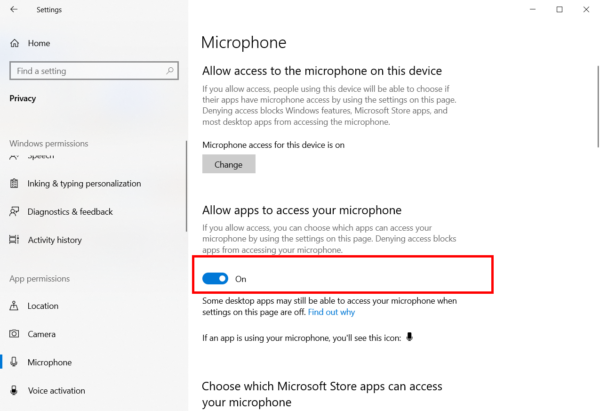
1. Open the Windows Start menu and click 'Settings' (the gear icon).
2. In the Settings window, select 'Privacy'.
3. Click 'Microphone' in the left menu.
4. Check whether the 'Microphone access for this device' option is turned on. If it is turned off, click the switch to turn it on.
5. Check whether 'Allow apps to access your microphone' is turned on. If this setting is disabled, apps such as oCam cannot use the microphone. Make sure it is turned on, then save the setting.
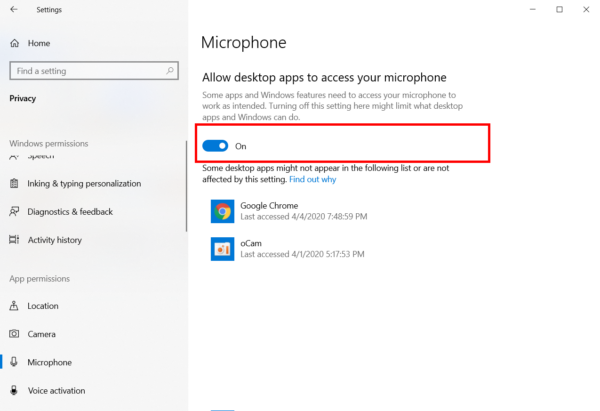
After changing the setting, restart oCam and try recording with the microphone again. If the permission has been granted properly, the "WASRecord: pAudioClient->Initialize failed. (hr=0x80070005)" error is likely to be resolved.
If the problem continues, check the microphone device settings themselves in Control Panel > Sound > Recording tab, or try selecting the microphone input source again in oCam's 'Sound' settings. In addition, updating Windows and oCam to the latest version may also help.
Programs
Another helpful tip
What to Do If an Error Occurs When Running the oCam Installer
When installing or running oCam, you may see an error message like the one below:
"Access violation at address XXXXX in module 'oCamXXXX.exe'. Write of address 00401000"
This error usually occurs when an anti-cheat program such as GameGuard is running. GameGuard uses system resources exclusively to protect the game, and this can interfere with the installation or execution of oCam. To resolve this issue, follow the steps below:
1. Completely close the game that is currently running. When the game closes, GameGuard will also close.
2. To make sure both the game and GameGuard have fully closed, open Task Manager (Ctrl + Shift + Esc) and check whether any related processes, such as GameGuard processes, are still running. If any remain, end those processes manually.
3. After GameGuard has closed, try installing or running oCam again.
By following the steps above, you can resolve the conflict caused by GameGuard and install or run oCam normally. If the problem continues, restart your computer and try installing oCam again without launching the game.