Recommended


How to Record Gameplay
Using oCam at work or school? A license is required, and it removes all ads, including this window. See the paid version →
* Game recording supports DirectX 8 through DirectX 12 and OpenGL.
Click the Game Recording tab at the top.
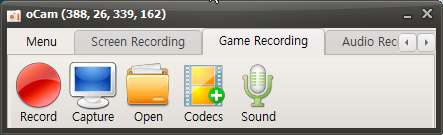
Once clicked, it will switch to the Game Recording tab as shown below, and the resize button will disappear.
Now move to the running game window, and you will see a yellow FPS counter appear at the top left of the game screen, as shown below.
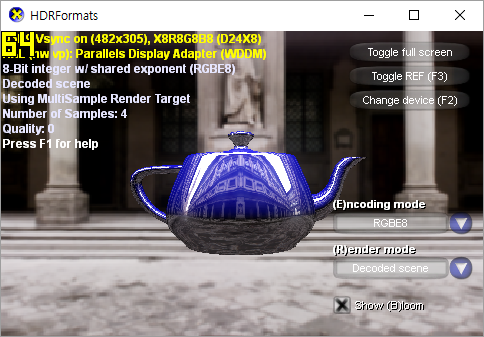
Now press the recording hotkey F2 ( you can change it in Settings. )
Then the FPS counter will turn red as shown below, indicating that recording is in progress.
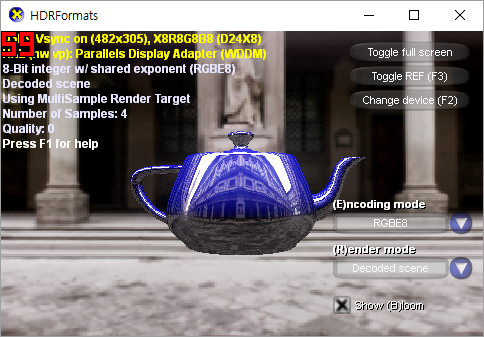
To stop recording, press the recording hotkey F2 again.
Please note that game recording does not work with all games.
If a game that used to work no longer records properly, it is likely being blocked by the game security solution used by the game company. In that case, it is recommended to ask the game company to add an exception so recording with oCam is allowed.
Programs
Another helpful tip
If Avast is installed, please disable the DeepScreen feature.
When users who use Avast antivirus install or update an OhSoft program such as oCam, the installation process may repeat several times. This is caused by Avast's 'DeepScreen' feature. Below is a detailed explanation of the cause of this issue and how to resolve it.
The DeepScreen feature is triggered when there is not enough reputation information about an executable file, which can cause a program such as oCam to be recognized as suspicious. OhSoft makes efforts to maintain compatibility with antivirus software, but in this case, even though the program is functioning normally, a situation can occur where a legitimate executable file that is not malicious is unable to install or update properly because of a specific antivirus feature. This is similar to a situation where a properly developed program causes inconvenience to users because of a false positive from antivirus software.
To resolve this issue, you need to disable Avast's DeepScreen feature. Below is a step-by-step guide on how to turn off the DeepScreen feature:
1. Go to the main screen of Avast antivirus.
2. Click the 'Settings' button on the left side of the screen.
3. When the Settings window opens, select the 'Antivirus' button from the menu on the left.
4. In the 'Antivirus' section, find the 'Enable DeepScreen' checkbox and clear it.
After changing the setting, confirm that it has been saved, then try installing or updating oCam again. Once the DeepScreen feature is disabled, the repeated installation issue is likely to be resolved. If the problem continues, you may also want to apply the latest Avast updates or contact OhSoft support.