Recommended

What to Do If an Error Occurs When Running the oCam Installer
Using oCam at work or school? A license is required, and it removes all ads, including this window. See the paid version →
When installing or running oCam, you may see an error message like the one below:
"Access violation at address XXXXX in module 'oCamXXXX.exe'. Write of address 00401000"
This error usually occurs when an anti-cheat program such as GameGuard is running. GameGuard uses system resources exclusively to protect the game, and this can interfere with the installation or execution of oCam. To resolve this issue, follow the steps below:
1. Completely close the game that is currently running. When the game closes, GameGuard will also close.
2. To make sure both the game and GameGuard have fully closed, open Task Manager (Ctrl + Shift + Esc) and check whether any related processes, such as GameGuard processes, are still running. If any remain, end those processes manually.
3. After GameGuard has closed, try installing or running oCam again.
By following the steps above, you can resolve the conflict caused by GameGuard and install or run oCam normally. If the problem continues, restart your computer and try installing oCam again without launching the game.
Programs
Another helpful tip
How to Fix Audio Sync Issues When Editing in Adobe Premiere
oCam is set to use Variable Frame Rate (VFR) mode by default, which allows it to adjust the frame rate flexibly depending on system performance and the recording environment. This setting is advantageous for efficient use of system resources, but it can cause compatibility issues with certain video editing software.
In particular, in professional editing software such as Adobe Premiere Pro, when loading a video file recorded with Variable Frame Rate, the irregular frame intervals may cause the audio and video to go out of sync. To fix this, you should change the setting in oCam to Constant Frame Rate (CFR) before recording.
To set it to Constant Frame Rate, follow these steps:
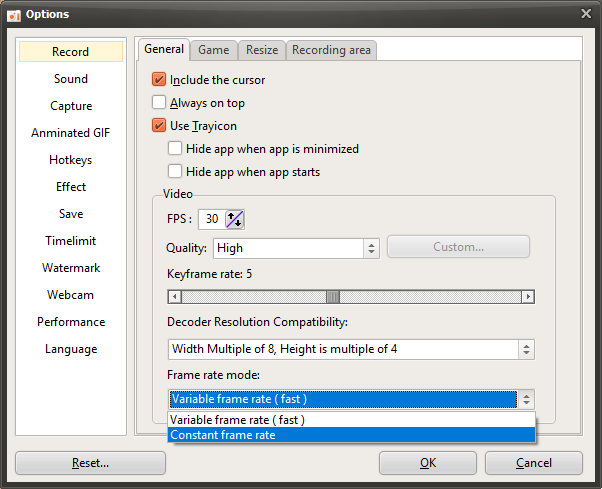
1. In the oCam main window, click 'Tools' in the top menu, then select 'Options'.
2. When the Settings window opens, go to the 'Recording' tab in the left menu.
3. In the 'Recording' tab, find the 'General' section and check the 'Frame Rate Mode' option.
4. Change the frame rate mode from 'Variable Frame Rate' to 'Constant Frame Rate'.
5. Click the 'OK' button to save the setting.
After changing to Constant Frame Rate and recording again, the frame intervals in the video will remain consistent, which can resolve audio and video sync issues in editing software such as Adobe Premiere Pro. This setting is especially essential for users who plan to edit videos and provides a more stable editing environment. After changing the setting, restart oCam and make a test recording to confirm that the result plays back correctly.